
How Lighthouse Prep works.
A complete tour of the app — written from the actual code, not marketing. Every feature here is shipped and reachable from inside the app today.
What Lighthouse Prep is #
A focused study workspace for competitive-exam aspirants — an AI plan builder, a session timer, a mentor that remembers you, a spaced-revision queue, and study groups for preparing with friends.
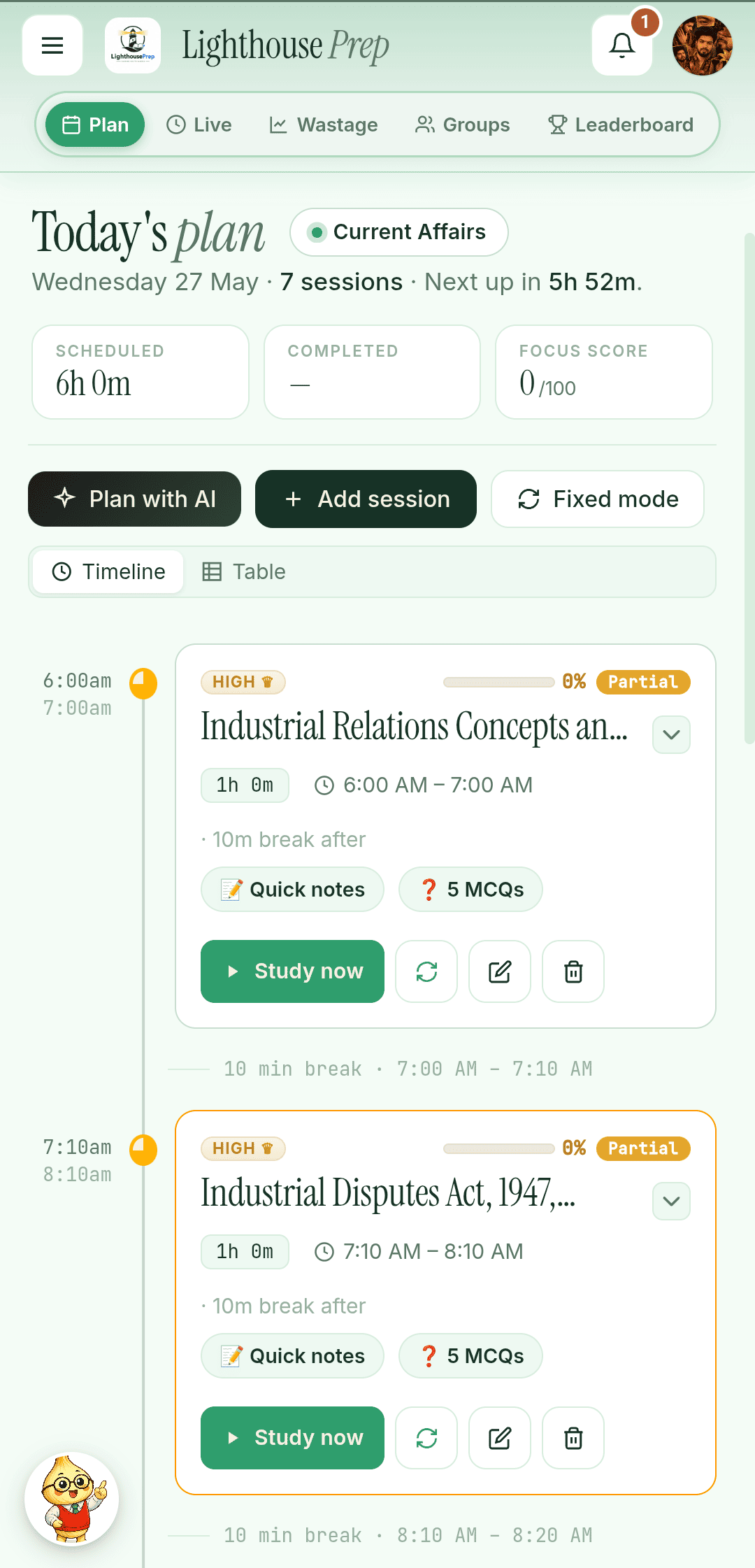
Lighthouse Prep is organised around the tabs you'll spend time in: Today's Plan (your day), Live Session (the active timer), Wastage / Insights (what happened), Learn (short videos on what the app can do), Community (everyone sitting your exam), Groups (study with friends you invite), and the Leaderboard (your weekly timer hours).
What you can do with it
Type your exam name; we build a full multi-session study plan around the topics that actually appear in your exam.
A timer that survives tab switches and auto-stops when your session's time is up.
In the Android app, your phone goes quiet and the apps you choose are blocked for every study session.
Break a topic into subtopics with notes, formulas, worked problems and MCQs — fact-checked before you read them, and instant if someone on your exam has already made them.
A spaced-revision queue that escalates the difficulty each time you ace a topic — from MCQs to twisted applied questions.
Computer-based mocks on your exam's real paper pattern — sections, negative marking, sectional timing and all. Your first one is free.
A daily report showing what got studied, what slipped, and how you compare to your goal.
A study mentor that remembers your goals, notices when you're slipping, and celebrates wins.
Invite-code groups with chat, shared plans, and a shared resource library — plus a public community for everyone sitting your exam.
The Crossing turns every hour you study into distance travelled toward your exam. You can never lose ground on it.
The study core is free (with occasional ads). AI features use a small token wallet; Lighthouse Pro removes ads and unlocks the extras.
A daily news brief with MCQs, sorted by exam category.
Getting Started #
The fastest way to your first session. No sign-up needed to begin.
Open the app
Open lighthouseprep.in/app in any modern browser and you go straight into setup — no account first. On Android, get the app from Google Play instead: it's the only version with Focus Shield and study alarms. On a computer or an iPhone you can install the web app from your browser so it gets its own icon and window.
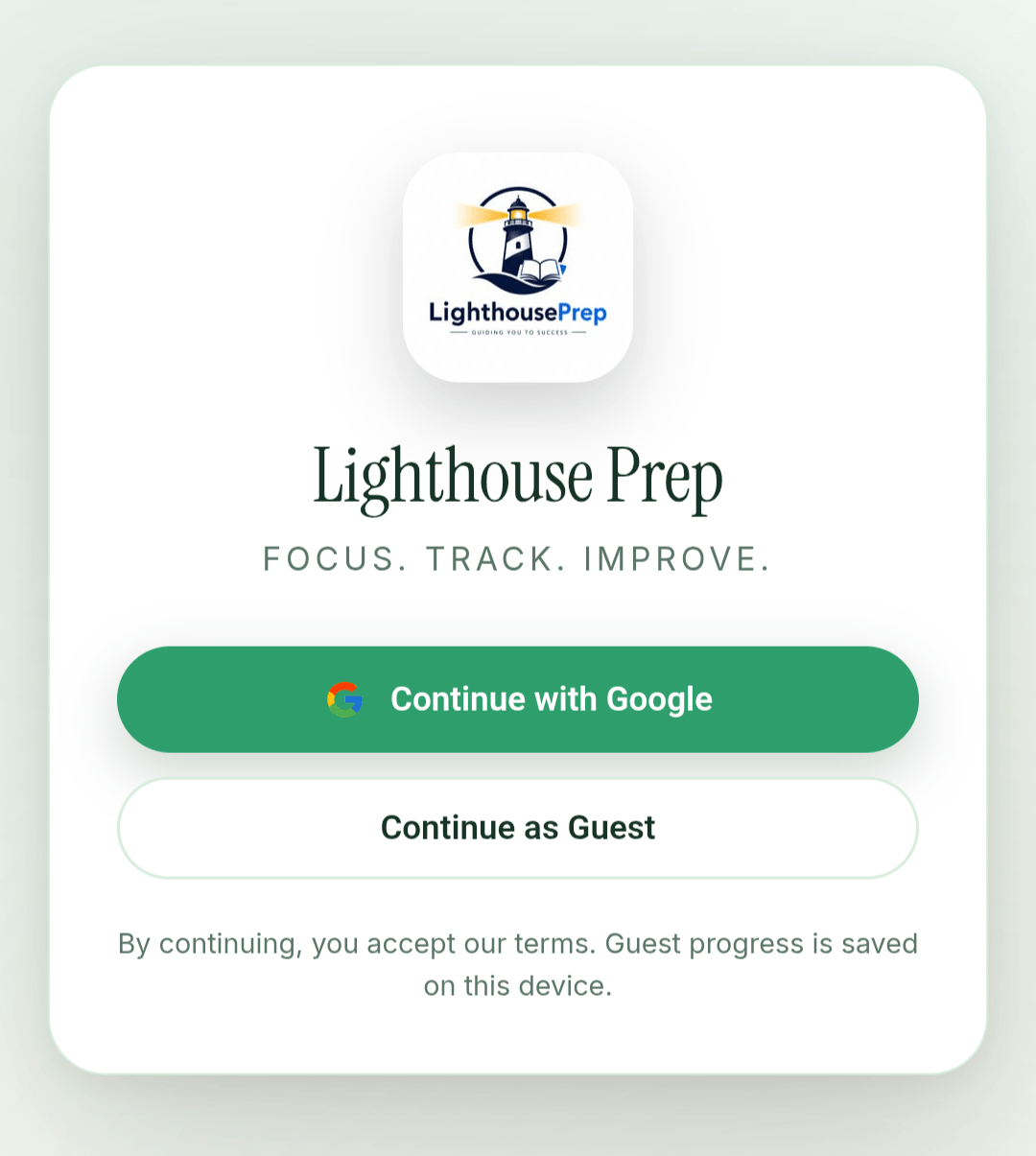
Two ways to keep your progress
- Carry on as a guestSessions, plans and even the AI plan builder all work without an account, and everything is saved on this device. You can sign in later and bring your data along.
- Sign in with GoogleYour plans, sessions, revisions and AI balance sync to every device you sign in on. Lumi, the AI mentor, needs a signed-in account.
Your first 5 minutes
- Pick your exam — tap one of the exam tiles or type its name, choose your study language, and set how many hours a day you study and when.
- Watch your plan build — a short checklist ticks through while the AI builds your routine from the exam's pattern and previous papers.
- Add your exam date if you know it — it's optional, on the "your plan is ready" screen — then tap Start my journey.
- Choose how to keep your progress — sign in with Google, or carry on as a guest and tell the app your name.
- Start your first session from Today's Plan. The timer counts up and stops by itself when the slot is over.
Account & Sign-in #
How accounts work in Lighthouse Prep — guest mode, Google sign-in, and what happens when you upgrade from one to the other.
Two account modes
Sign in with your Google account. Your data syncs to the cloud and is available on every device you use.
No password, no email. Your data stays in this browser only. Clearing your browser or switching devices will wipe it.
What each mode unlocks
- Sessions & timer
- Both modes — full feature.
- AI plan builder
- Both modes — uses your free balance.
- Lumi mentor
- Sign-in only.
- AI balance / top-up
- Both modes can use it; only signed-in users can top up.
- Study groups & chat
- Pro only (and signed in).
- Leaderboard
- Sign-in only — free shows as 'Anonymous'; Pro shows your name, photo, and rank.
- Sync across devices
- Sign-in only.
- Push notifications
- Study reminders work for guests too; the rest need sign-in.
Going from guest to signed-in
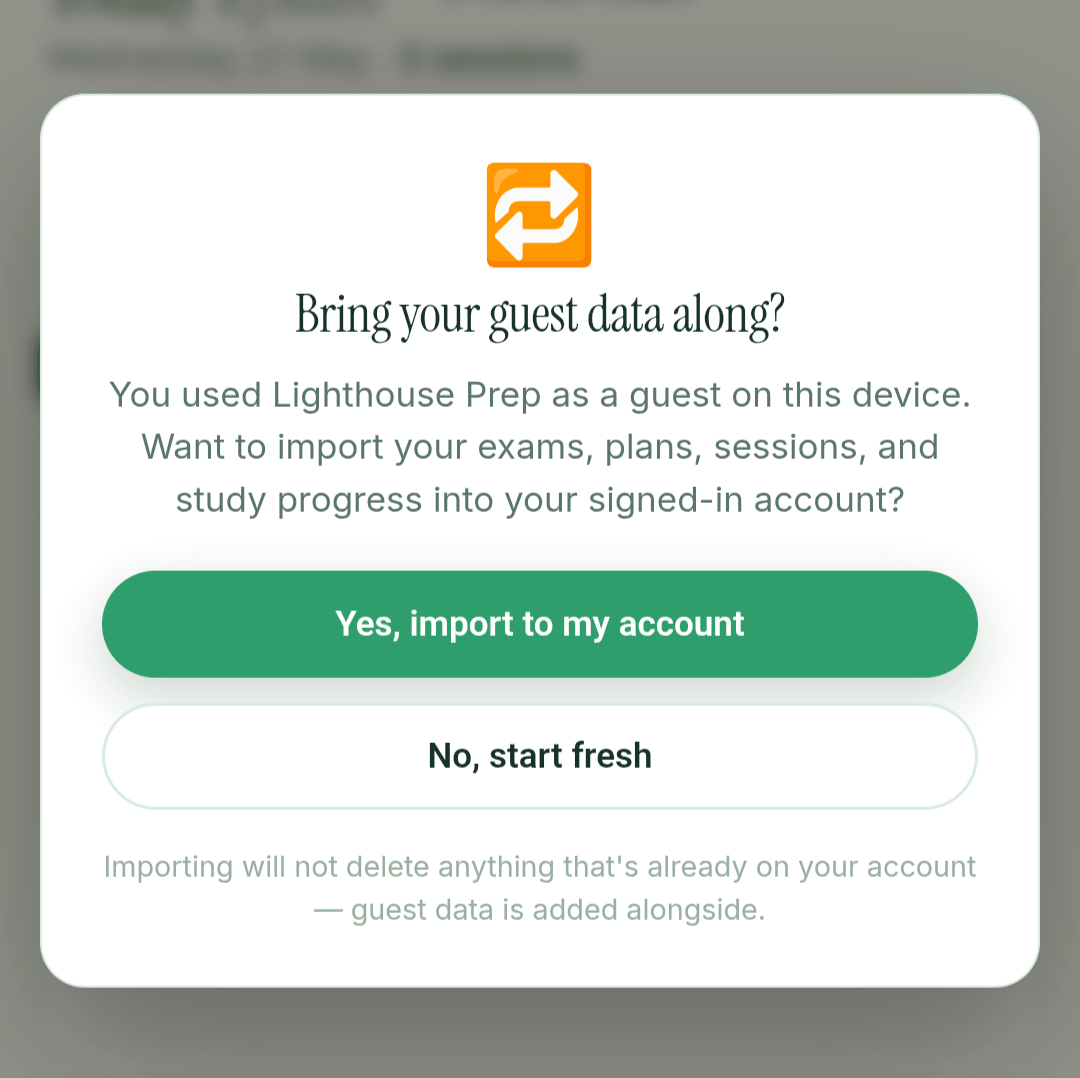
When a guest signs in to a new Google account, their plan, sessions and study time simply move into it. If the account already has plans, a Merge Guest Data prompt asks whether to bring the guest data along, so nothing is lost.
- Your local guest data stays as a fallback until the merge succeeds.
- Time studied per session carries over, so your streak survives the upgrade.
- If something fails, just retry — you don't lose anything.
Deleting your account
Visit lighthouseprep.in/delete-account to permanently remove your account and all data tied to it. The action is irreversible.
Onboarding Flow #
One screen of setup, and you have a complete study plan ready to start.
The setup screen
- Your examTap one of the tiles — SSC, Railways, Banking, UPSC, TNPSC, State PSC, Defence, Teaching or GATE — or type your exam's name. If you pick a broad category, a short popup asks which exam exactly.
- Your study languageShown when your exam is held in more than one language. Study material, quizzes and AI chat follow it; technical terms stay in English, like the real paper.
- Your daily study timeHow many hours a day you'll study, and when. Tap Change to adjust it.
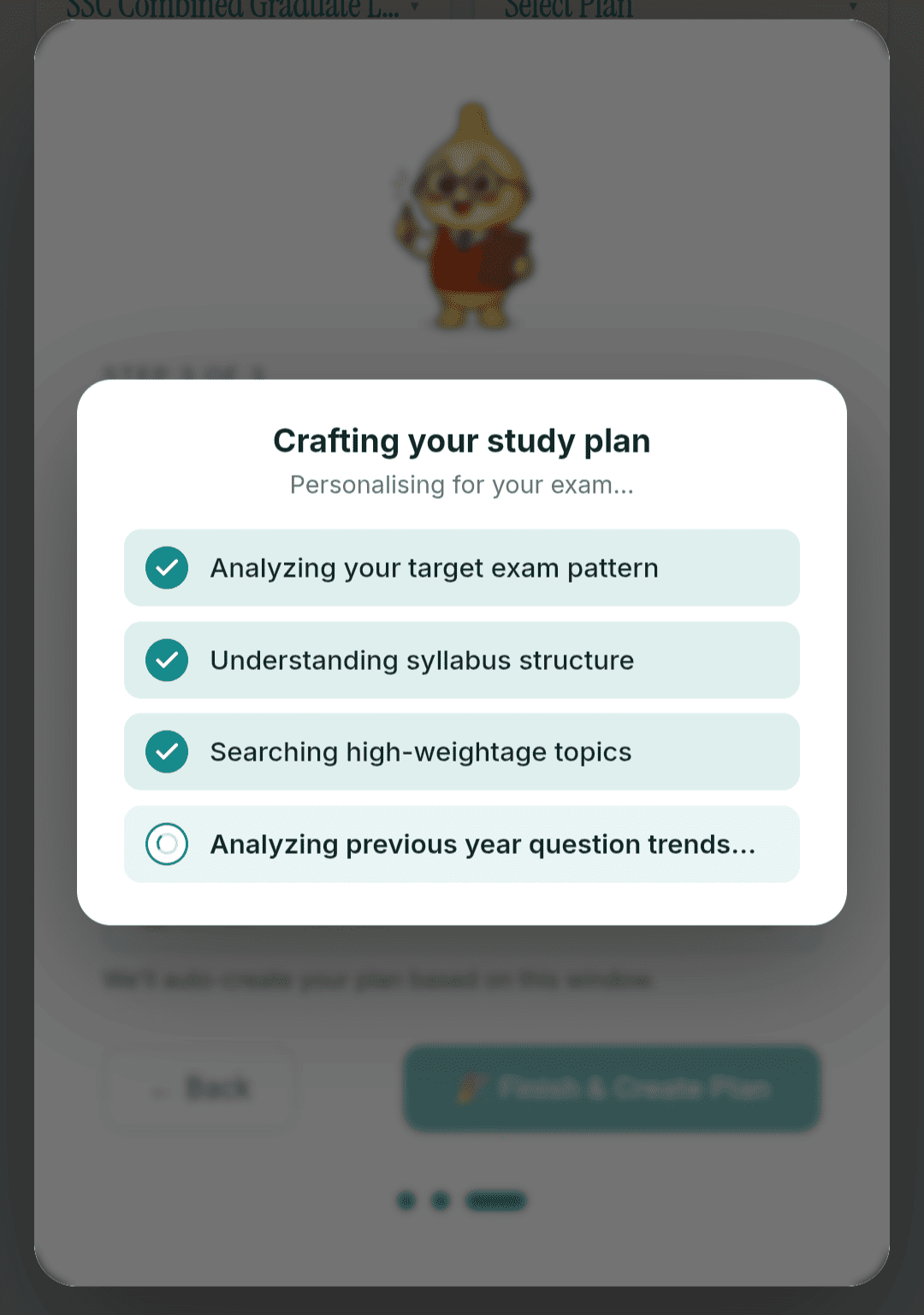
While your plan builds
A short checklist ticks through six steps, one at a time, while the AI builds your plan:
- Analyzing your target exam pattern
- Understanding syllabus structure
- Searching high-weightage topics
- Analyzing previous year question trends
- Comparing toppers' preparation strategies
- Building personalized study sequence
The first five tick on a steady rhythm. The last one only ticks when your plan is actually ready — so the wait always feels purposeful.
Your plan is ready
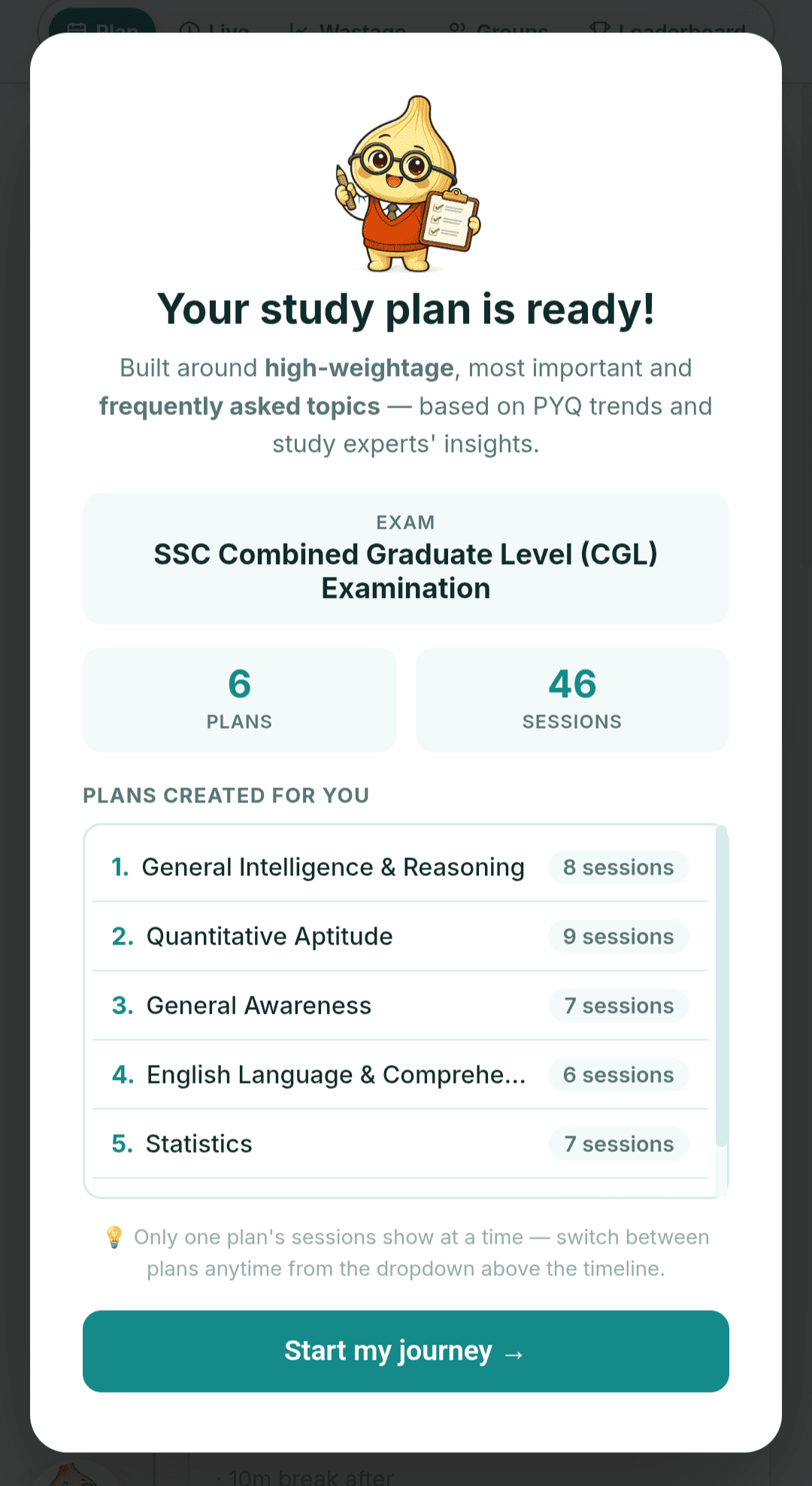
A summary card shows your exam, how many plans and sessions were built, and the list of plans with their session counts. You can add your exam date here. It's optional, and it powers the exam countdown, Lumi's days-left and the distance in The Crossing. Tap Start my journey.
Save your progress
Next you choose how to keep what you've built: sign in with Google, or carry on as a guest and type the name the app should call you. Signing in to a new Google account simply moves your plan into it; if the account already has plans, the app asks whether to import the guest data. Then you're on Today's Plan, with a one-time spotlight pointing at the Start button on your first session.
Learn videos #
A short-video library inside the app that shows you what Lighthouse Prep can actually do. Most people never find half the features in an app they use daily — this is the fix for that.
Where to find it
The Learn tab in the main navigation. Nothing to unlock and nothing to pay — it's open to everyone, guests included.
How it's organised
Filter by AI, Planning, Study Timer, Focus Shield, Resources, Current Affairs, Pro Features and Tips — or tap New to see only what's just been added. Search matches titles and descriptions.
Vertical clips (Shorts and reels) get their own shelf in their proper 9:16 frame; longer walkthroughs sit in the wide grid below. Nothing is letterboxed or cropped to fit.
Many videos carry a Try this feature button that drops you into the exact screen it just demonstrated — the planner, the live timer, Focus Shield, Mock Tests, Community and so on.
It remembers where you were
Leave a video half-watched and it reappears under Continue watching at the position you stopped; Recently watched keeps the last few you opened. Both show up only when you're browsing, so a search result is never cluttered by them.
Lumi — your AI mentor #
Not a chatbot. Lumi remembers your goals, notices how you're feeling, and times its check-ins so it stays useful — not annoying.
How to talk to Lumi
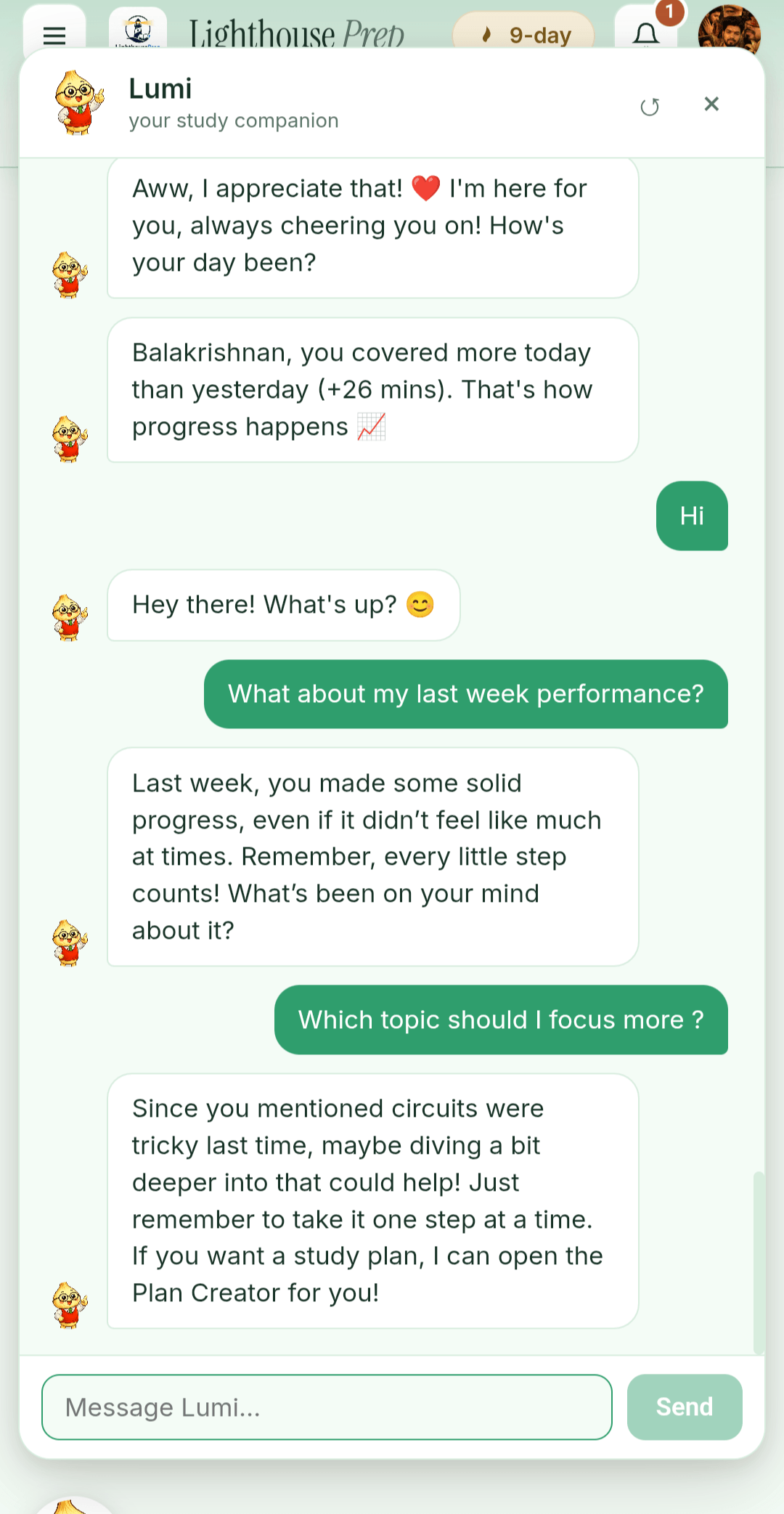
Tap the floating Lumi button (bottom-right of any page) to open the chat. Replies stream in word by word. Lumi picks up your language automatically — English, Tamil, Tanglish, Hindi, Hinglish — and replies in the same register.
What makes Lumi different
Tell Lumi something once — your exam, weak subjects, goals — and it remembers across weeks. You can also ask it to forget something ("forget that I'm preparing for X") and it will.
If your messages start sounding stressed or burnt out, Lumi softens its tone and may suggest a lighter session.
Lumi doesn't spam. It speaks up at the right moments — right after a session, when you've gone quiet for a few days, when your exam is close — and goes quiet otherwise.
Hit a streak, finish your 10th session, come back after a break — Lumi notices and celebrates with a short popup when your session ends.
When Lumi will start the conversation
Whenever you open the chat, Lumi may lead with a check-in. These come up in the moments where a nudge actually helps:
- Right after a study session — to ask how it went.
- If you sound burnt out lately — a softer, "let's talk" opener.
- As your exam gets close (within a week) — a focus check.
- If you've been quiet for a few days — a low-key "even 20 minutes today counts" nudge.
- If it's been a week or more — a real check-in on how prep is going overall.
Celebrations Lumi tracks
When you finish a session, Lumi shows a little celebration popup (with the Lumi picture) if you've earned one — and if you'd already earned one while the app was closed, it greets you with it the next time you open the app. These never push to your phone. You can earn them for:
- 3-, 7-, and 30-day study streaks
- 10, 50, and 100 total completed sessions
- Your longest focus session yet — a new personal best for one sitting
- Your biggest study day yet — a new personal best for a day's total
- Days you studied more than yesterday
- Coming back after a long break
Asking Lumi to build a plan
If you ask Lumi to "build me a plan" or "create a study plan", it won't try to write one inside chat. Instead it opens the same plan-builder you saw at onboarding — so you get a real structured plan, not a wall of text.
Lumi Call — a voice check-in
Lumi can also talk to you out loud. Open Lumi Call, pick a preferred time window and a language (English, Tamil, or Hindi), then:
- Call me now — starts a live voice chat with Lumi right inside the app.
- Ring my phone (in the Android app only) — sends a full-screen call to your phone so you can answer Lumi from the lockscreen, like a real call.
Study Sessions #
The timer is the heart of the app. Here's how to use it without losing a second of your study time.
Today's Plan
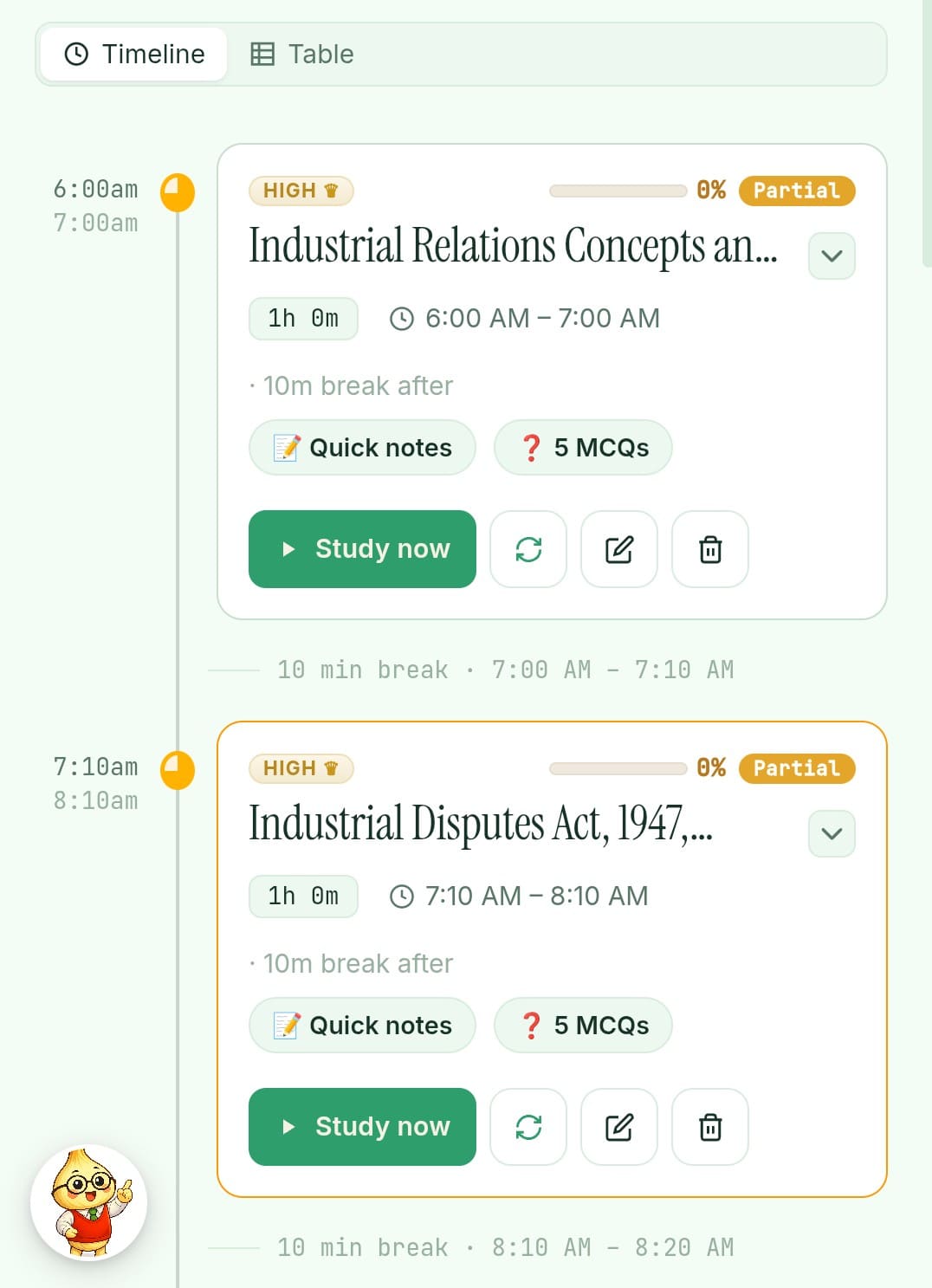
This is your home page. Pick your exam from the top dropdown, then a plan under it, and you'll see today's sessions laid out on a timeline. Each card shows the session name, when it's scheduled, how long it lasts, and how much of it you've already studied.
Starting a session
- Tap a session cardOpen the session's sheet for details.
- Hit StartThe timer begins counting and (on Android) Focus Shield switches on.
- StudySwitch tabs, lock your phone, take a break — the timer keeps running.
- Auto-finishWhen you hit your scheduled time, the timer stops on its own.
What the timer guarantees
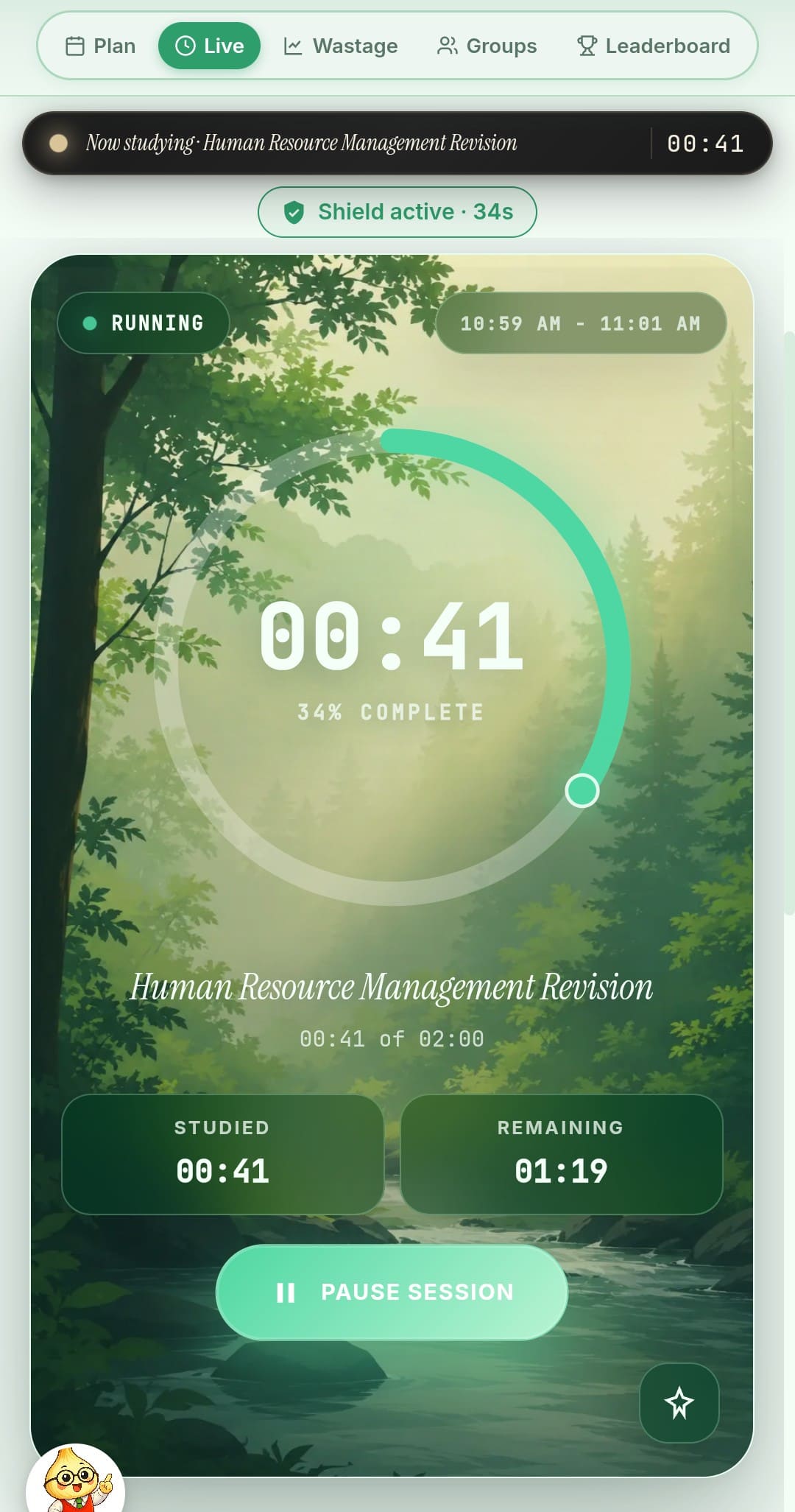
- It survives tab switches. Move between Today's Plan, Lumi, even the Wastage report — the timer keeps ticking on whichever session you started.
- It stops itself. When the session reaches its scheduled length, it auto-stops and is marked as complete. You can't accidentally over-study a slot.
- Pausing keeps your place. Hit pause and the visible time stays — resume continues from there.
- Switching mid-study never loses time. If you start a different session before finishing the first one, your elapsed minutes on the first session are saved before the swap.
Live Session page
Once a session is active, the Live Session view gives you a full-screen timer, a choice of clock-face themes, a notes / material area for the topic, and a quick-revise shortcut for the topics in this session — all without stopping the timer.
Two plan modes
- Fixed mode — sessions have start and end times. You'll see a clock-style timeline, and any time you don't study during a slot counts as wastage.
- Flexible mode — sessions are just an ordered list. There's no clock; you do them in order at your own pace. The Wastage tab is replaced by an Insights view.
When the plan is bigger than your day — Catch-up mode
A plan here is a daily routine, not a dated calendar, so falling behind doesn't mean missing Tuesday's topics — it means the routine keeps asking for more hours than you've actually been managing. When that's been true for several days, a catch-up banner appears on Today's Plan offering to rebuild the routine to a size you can actually hit.
- It aims at your good days, not your worst. The new size comes from the best days you've already proved you can do, not from your average — a plan built on your worst week is just demoralising.
- Start times never move. Only session lengths shrink, so a morning block stays in the morning and an evening block stays in the evening.
- Nothing is deleted. Sessions that no longer fit are paused, and your studied hours, streak and leaderboard time are all untouched.
- You can always go back. "Restore original plan" puts the routine back exactly as it was. It's saved to your account, so it doesn't expire and it's there on any device you sign in on. You can also snooze the suggestion for a week.
- Paused sessions stay reachable. They move to a Paused sessions list at the bottom of Today's Plan, along with every note, PDF and piece of study material saved under them. Tap Resume to bring one back on its own.
It's a local calculation — no AI, no tokens, works offline — and it stays quiet until there's enough history to judge fairly, so a brand-new plan never gets cut.
Focus Tracking & Shield #
In the Android app, Focus Shield quiets your phone and blocks the apps you choose the moment a session starts, and puts everything back the second it ends — without you doing a thing.
Where it works
- The Android app from Google Play — full Focus Shield.
- Desktop browsers — not supported, no toggle shown.
- iPhone / iPad — not supported (Apple doesn't allow third-party apps to control Do Not Disturb).
What it does during a session
- Do Not Disturb switches on in priority-only mode, so calls and notifications go quiet.
- Notifications from the apps on your block list stop sounding and vibrating.
- Open a blocked app mid-session and a "stay focused" screen steps in and points you back to studying.
- Leave the app and a small floating timer keeps your session in view (optional).
- Tap the shield chip to see how many distractions were blocked.
Pick the apps to block from the shield chip's menu with Choose apps to block. The list stays on your phone. When the session ends, Do Not Disturb goes back to how you had it and your apps open normally again.

First-time setup (Android only)
The first time you start a session in the Android app, a short walkthrough asks for each permission on its own screen, explained before Android's settings open:
- Do Not Disturb accessSo your phone can go quiet during sessions and come back afterwards.
- Notification accessSo the apps on your block list can be muted. It never reads or sends the content of your notifications.
- Keep running in the backgroundKeeps the shield active for your whole session when Android tries to sleep background apps.
- Android's accessibility serviceThis is what blocks apps: it checks only the name of the app on screen, on your phone, while a session runs. It never reads your screen, text or passwords.
- Display over other apps (optional)For the floating study timer. You can skip it.
When it switches on
Focus Shield turns on automatically whenever one of these is true:
- A study session timer is running, or
- You've opened the Current Affairs reading sheet.
Both count as "real study time," so we silence the phone for either. Switching between sessions does not bounce you off the page or toggle the shield off and on — it stays running smoothly.
Manual control
In Settings you can turn off the auto-on behaviour. After that, the shield only runs when you toggle it on yourself from the chip. The chip always shows the current state: off, turning on, on, turning off.
Distraction & Wastage #
Where your hours actually went. Two views depending on your plan style — Wastage (for fixed-time plans) or Insights (for flexible plans).
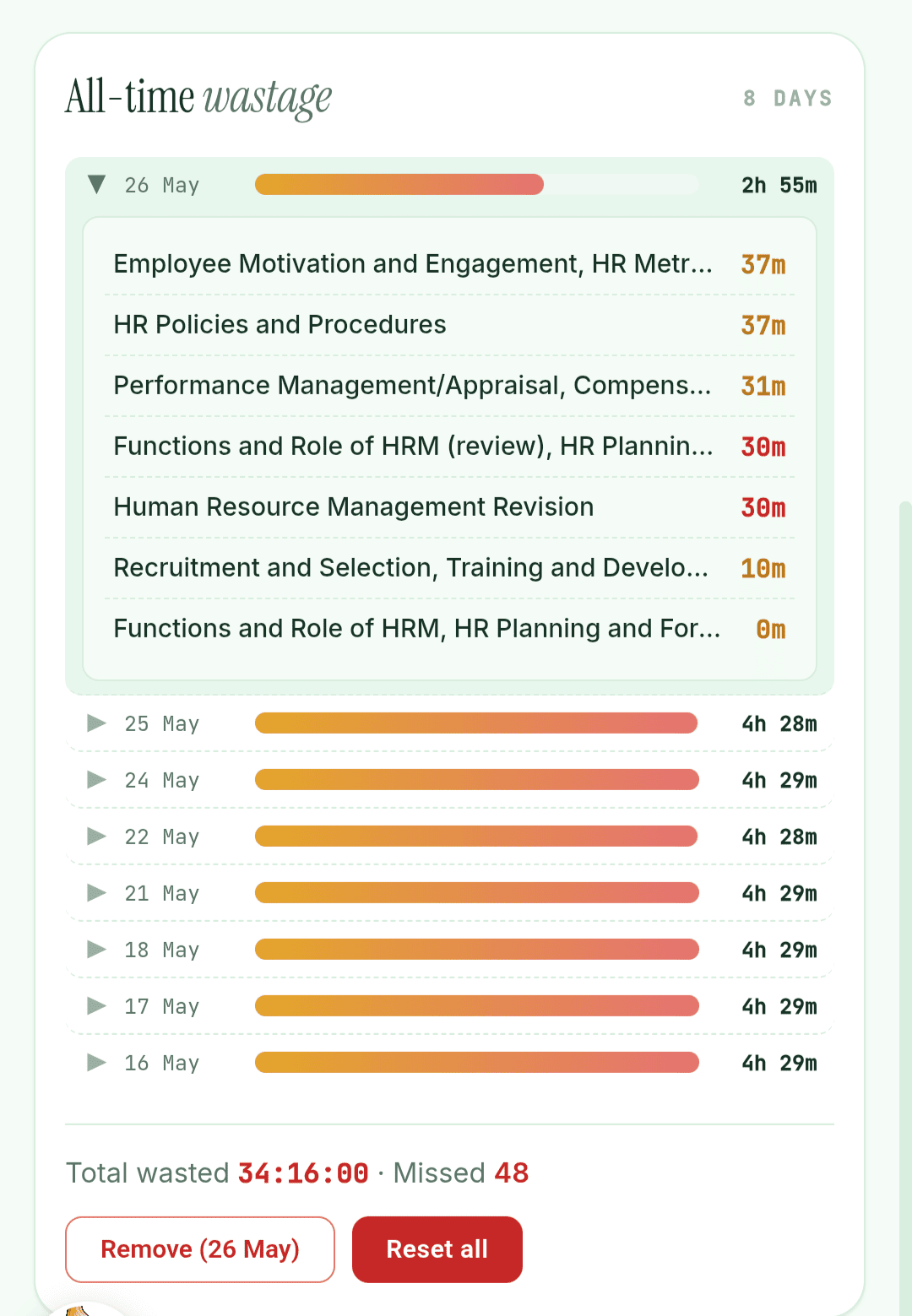
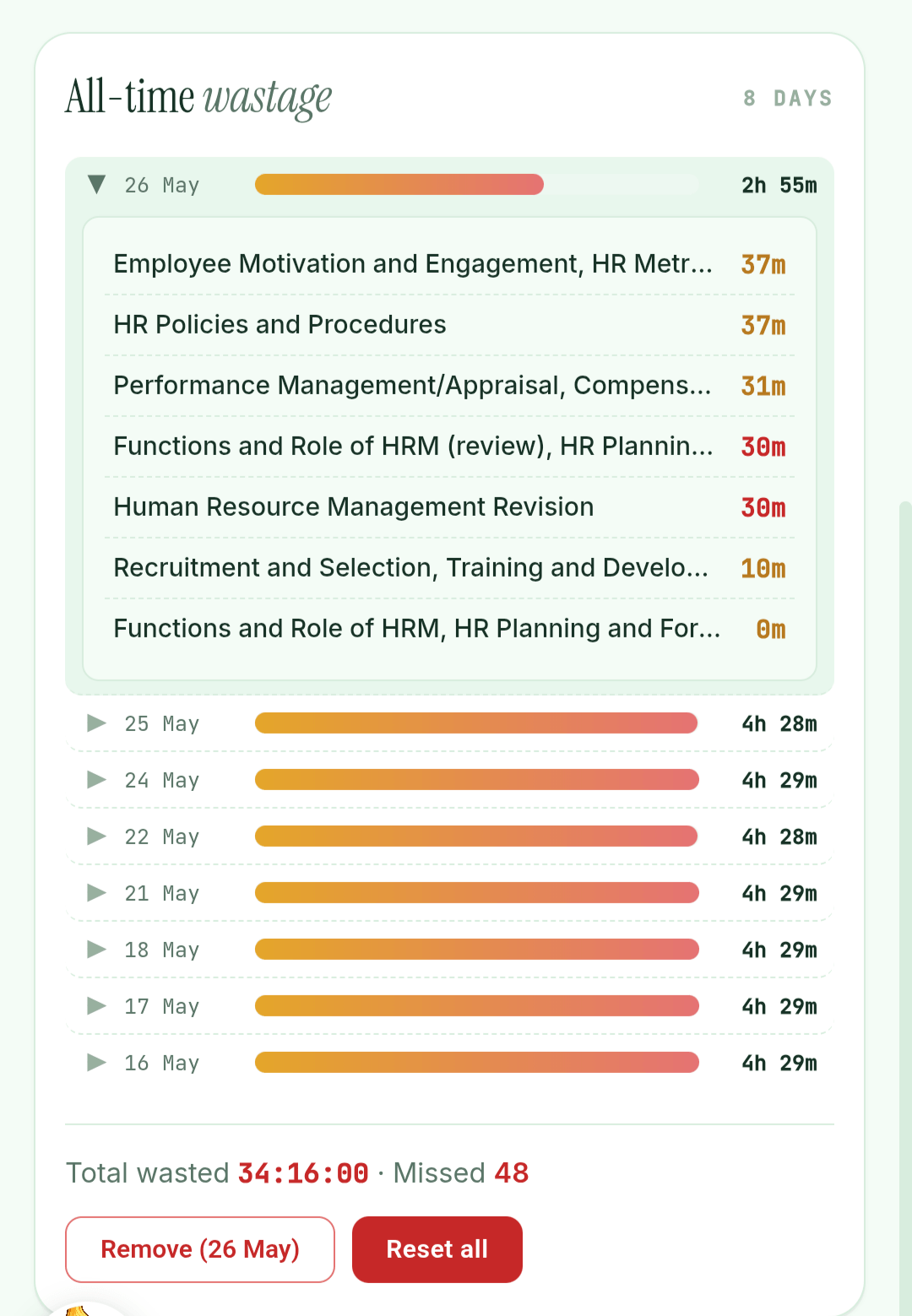
Wastage Report — fixed plans
Every scheduled session becomes a row: how long it was meant to take, how long you actually studied, and the gap between them. The gap is your wastage.
- Daily ribbon at the top shows studied vs. wasted with a percentage.
- History table drills into individual sessions across days.
- Inline edit lets you correct a session's studied time — useful if you studied offline and the timer wasn't running.
Insights Report — flexible plans
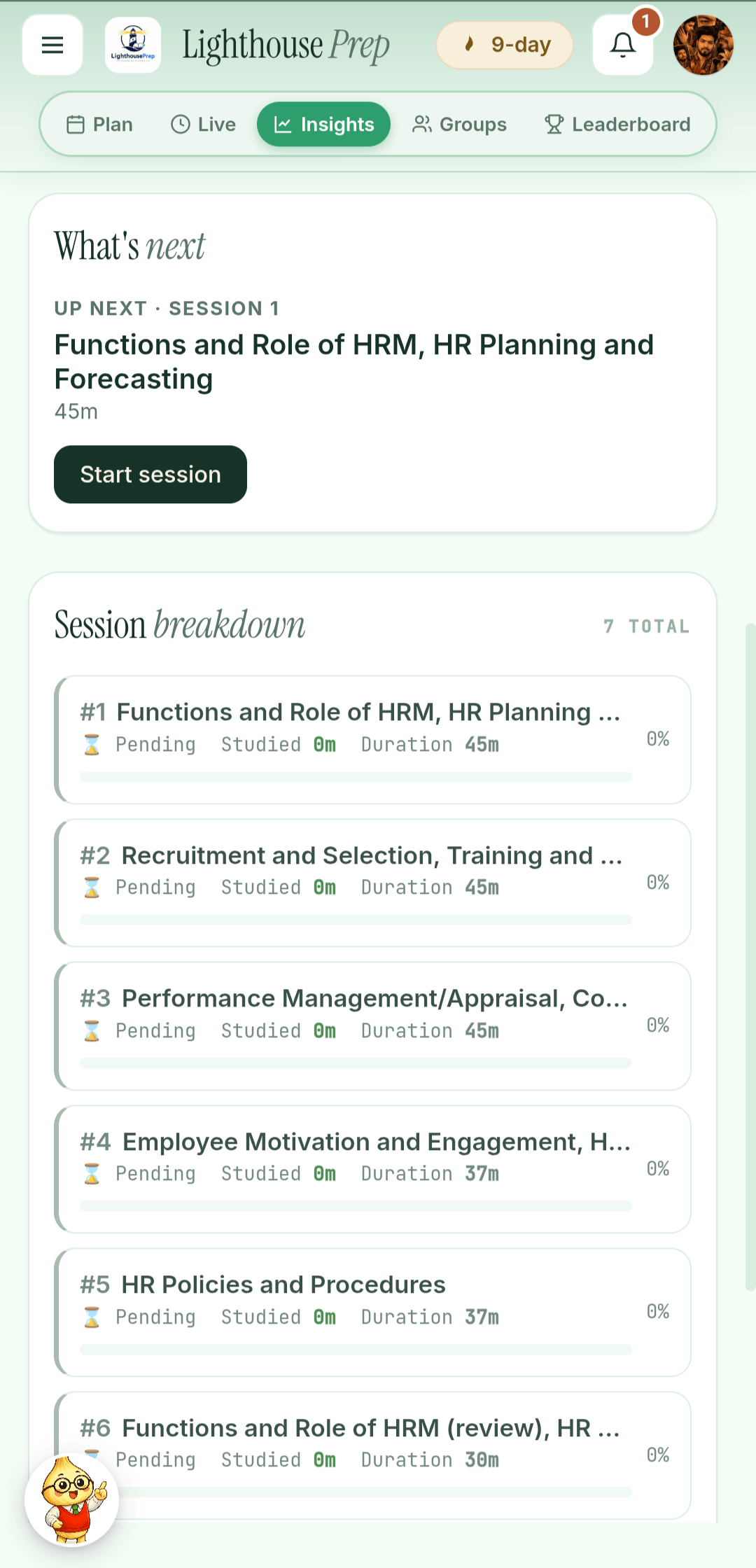
Flexible plans don't have time slots, so "wastage" doesn't apply. Instead, Insights ranks your sessions by completion, surfaces your consistency trend, and shows whether you're stacking enough sessions per day to hit your goal.
The day-end report
After you've crossed a meaningful chunk of study time, a day-end report arrives both in the app and (if you've enabled it) as a push notification. It tells you:
Everything the timer counted across all your sessions.
How close you came to the daily goal you set during onboarding.
Where most time went and where you bailed early.
A look at what's queued for tomorrow.
Study Material #
Every session can generate its own study material — quick notes, a full topic breakdown, worked practice problems, formulas and exam strategy — written for your exam, in your study language, and checked before you ever read it.
Where to find it
Open any session on Today's Plan and tap Material (the same area is reachable from the Live Session page while your timer runs, so you never have to stop studying to open it).
Quick actions — the 10-second version
Three chips at the top generate something immediately for that session:
- 📝 Quick notes
- A short, scannable set of notes on the session's topic.
- ❓ 5 MCQs
- Five practice questions with answers.
- 📄 Summary
- A condensed set of key points.
Anything you generate is saved under All materials, grouped by day. From the output screen you can Load more to extend it, Convert it into one of the other formats, or Export it as a file to keep or share.
The deep dive — a topic broken into subtopics
For real study, generate the topic breakdown: your session's topic is split into chapters and subtopics, and each subtopic opens a deep dive with seven tabs.
- ⭐ Important Notes
- The things that actually get asked.
- 📖 Core Concepts
- Each concept as its own card with a short brief.
- 📐 Key Formulas
- Formulas with what each symbol means.
- 📚 Practice Problems
- Worked examples you can follow step by step.
- ❓ MCQ Quiz
- Questions on this subtopic, with explanations.
- 🎯 Scoring Objectives
- What to be able to do before you move on.
- 💡 Exam Strategy
- How this topic is best attacked in the paper.
Everything is written in the same house style: scannable bullets, the words that matter in bold, and a closing memory tip — not walls of prose.
Going deeper on one point
Every concept card has its own button that explains that one point with a worked example — and leaves a box open so you can ask a doubt about it and keep asking until it lands.
Pulls up the questions this specific concept tends to be asked through, so you see the exam's angle on it, not just the theory.
Illustrations
Sections carry a generated illustration of the concept — a diagram-style image rather than decoration. The first person to open a section pays for its image; after that it's stored and free for everyone else who ever reads that section.
Checked before it reaches you
Every section is audited by a separate AI review before it's saved. Practice sets are audited by re-solving them, not by taking the answer key's word for it — and any question whose explanation contradicts its own answer is thrown away rather than shown to you.
Found something wrong anyway? Every card has a report action — wrong information, missing or incomplete, too easy for this exam, confusing, wrong language, repeated content — plus a box for anything else. Reports go straight to the team.
My resources — your own notes on a topic
- Notes are free for everyone. Write your own notes against any topic. They're private, and they sit right next to the generated material.
- Images, PDFs and links are Pro. Save a photo of a page, a PDF, or a useful link alongside your notes with Lighthouse Pro.
- The session card gathers it all. Opening resources from the session card shows everything you've saved across all of that session's topics in one place.
Material feeds your revision queue
As you mark subtopics studied, they enter the spaced-revision queue at level 1 and start coming back on schedule. This is the intended path: study a session → generate its breakdown → mark what you covered → revise it automatically for weeks afterwards.
Revision Reminders #
A spaced-repetition system that gets harder each time you ace a topic — from a quick MCQ to a twisted, applied question.
The six levels
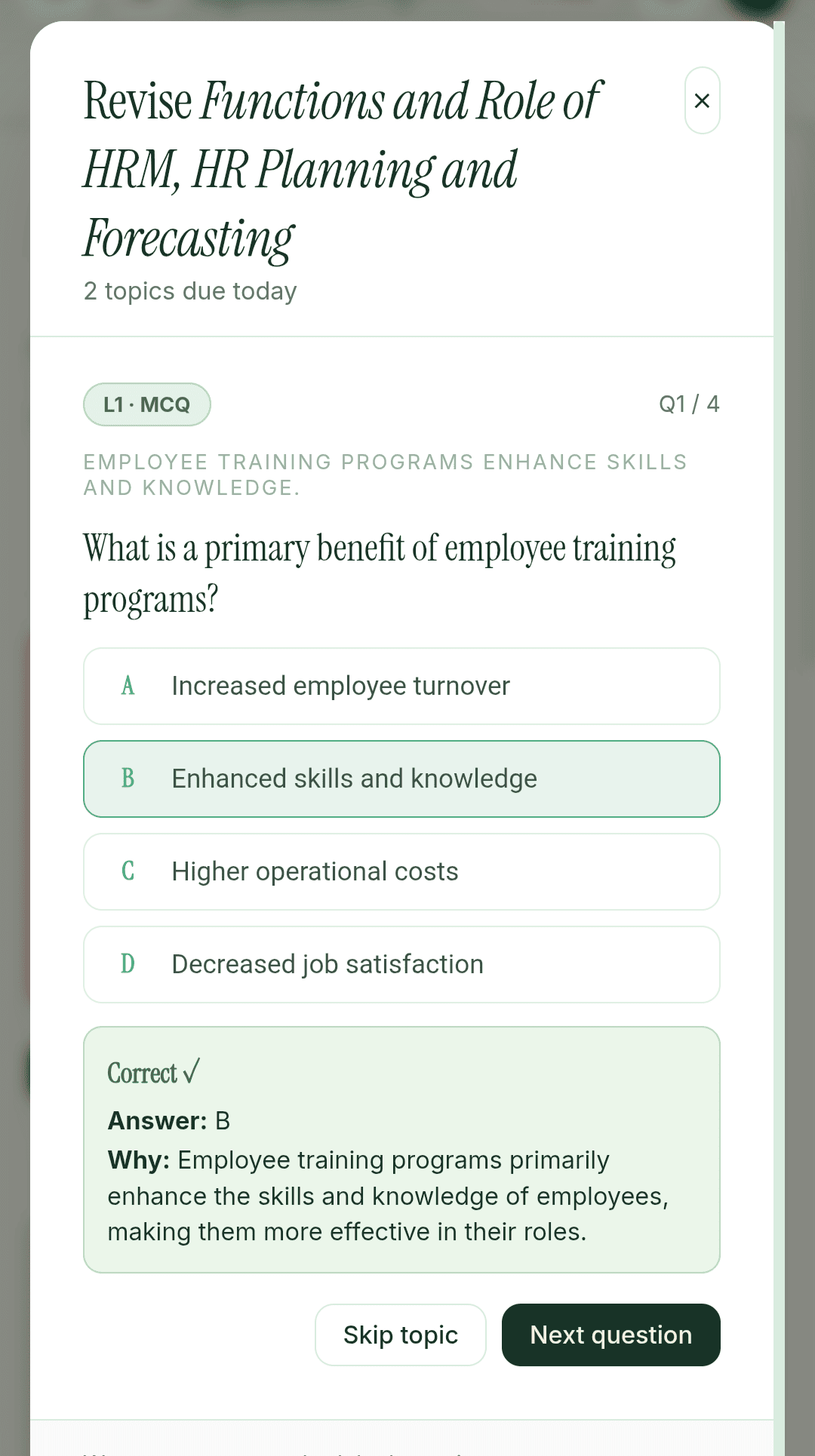
- L1 — MCQ
- Just learned. First revision is multiple choice.
- L2 — Hint recall
- Second pass. The prompt gives you a hint; you fill in the rest.
- L3 — Pure recall
- Third pass. No hint.
- L4 — Timed recall
- Fourth pass. Same as pure recall, but with ten seconds on the clock. Go over and the topic counts as shaky, so it comes back sooner.
- L5 — Applied
- Fifth pass. A twisted question — you have to apply the concept.
- L6 — Mastered
- Long-term refresh mode. Once every two months.
The schedule
After a successful revision, the next one is scheduled:
A topic asks you three to seven questions, and you have to get most of them right — not all — to move up. Answer everything cleanly and it goes quiet for the full gap. Scrape through with a few shaky ones and it still moves up, but comes back on the previous, shorter gap. Only a genuinely poor run holds it where it is and brings it back tomorrow, and you can never slip more than one level back. The system is built to be forgiving.
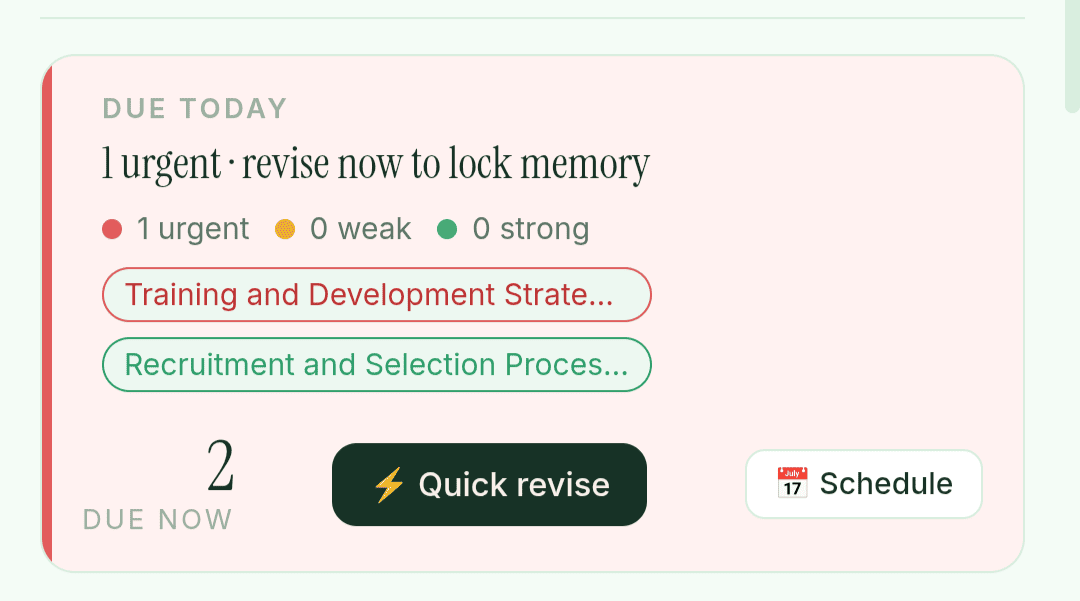
Due Today banner
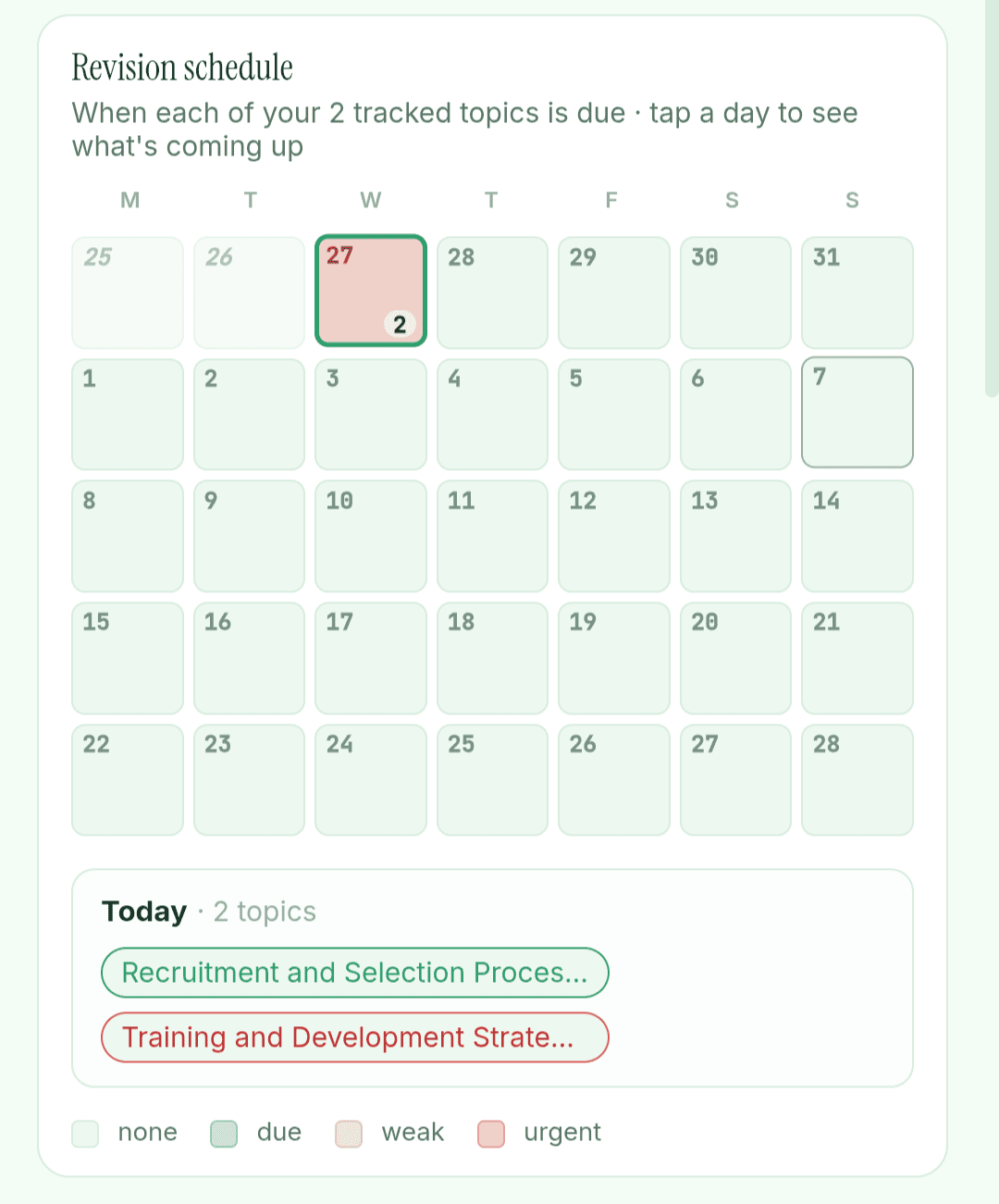
On Today's Plan, a banner shows you what's due. It groups items by:
- Urgent
- Overdue topics that are also shaky — these come first.
- Weak
- Topics you answered shakily or missed — they come back on a shorter gap.
- Due
- Due today or earlier.
- Strong
- Topics sitting at L4 and up — shown for awareness, not urgency.
How a revision session feels
- Tap Revise from the banner or any session card.
- The quiz opens in the format matching the topic's current level.
- Answer, then see the real answer. You tell the app how it went — I got it, Partly, or I missed it — with its own guess already selected, so it's one tap when the app got it right. The app can't reliably mark a typed answer, and you know whether it was really in your memory.
- The next revision schedules itself from the result.
- Not in the mood for a topic? Skip topic steps it to tomorrow without counting against it, and the ✕ next to any topic in the queue stops it coming back at all.
- A calendar on Today's Plan shows how heavy the next five weeks look.
Where revision items come from
Open any session and use the Material section to generate a topic breakdown — chapter → subtopic → MCQs / deep dive. As you work through subtopics, they enter the revision queue at L1 and start the cycle.
Mock Tests #
Full-length computer-based mock tests built on your exam's real paper pattern — the same sections, marks, negative marking, timing and screen behaviour as the actual exam. Your first mock test is free.
Where to find it
Tap the Mock Test button on Today's Plan. You need an exam selected first — the mock test is built around your exam's real paper pattern, so the app has to know which exam you're preparing for.
The real paper pattern
Before you start, the app shows you exactly what the paper looks like:
- Every section with its question count and marks.
- Negative marking (for example −⅓ per wrong answer), just like the real exam.
- Total duration — and sectional timing where the real exam locks you into one section at a time.
- Well-known exams use their genuine published pattern; for other exams the AI works out the pattern and it's saved for everyone after that.
The test series — pay once per paper
- Paper 1, Paper 2, Paper 3… Each pattern has a series of fixed papers. Everyone preparing for the same exam gets the same Paper 1, so scores are comparable.
- Buy a paper once, keep it forever. A paper costs a small one-time amount of tokens — its actual creation cost, nothing more. Once you own it, every re-attempt of that paper is free, forever.
- Want fresh questions? Start the next paper in the series — each new paper is a brand new set of questions on the same pattern.
Inside the exam screen
Section tabs, one question at a time, the standard question palette (answered, not answered, marked for review, not visited) and the real button set. An answer only counts once you save it — exactly like the actual exam software.
The timer runs on real wall-clock time. Lock your phone or switch apps and the clock keeps counting — when you come back you're exactly where the real exam would have you, and the paper auto-submits when time is up. Close the app mid-test and you can resume the same attempt with all your answers intact.
After you submit
- Your score, maximum marks and accuracy, with negative marking applied.
- A full answer review — every question with the correct answer and an explanation.
- A 💡 doubt chat on every explanation — tap it to ask the AI anything about that question until it makes sense.
- Your recent attempts stay on the mock-test start screen, labelled Paper and Attempt number, with one-tap re-attempt and tap-to-review.
In your study language
Questions come in your exam's study language. Sections that test English itself (like an English Language section) stay in English — the same way real bilingual papers work.
Productivity Analytics #
Three views of your progress — per session, per day, and per week.
Per session — Wastage / Insights table
Every session you ever ran is logged with its date, scheduled length, actual studied minutes, and the gap. You can filter by date range, edit any row, and export the whole thing to a PDF for offline review.
Per day — the day-end report
Once a day, after you've studied, a summary lands in the app (and as a push notification if you've allowed them). It covers your hours studied, % toward your goal, and a peek at tomorrow's plan.
Per week — the leaderboard
The Leaderboard tab shows your weekly timer hours on the week's board, with your row highlighted.
The total hours your timer logged this week, across all your sessions.
Your row refreshes every time you open the app, with your latest weekly hours and an "Online" tag.
Free users appear as "Anonymous". Lighthouse Pro shows your real name and exact rank. Guests never show up at all.
Share your stats
The Share today's stats option in the burger menu builds a downloadable image card with your name, weekly hours, longest streak, and exam name — handy for posting to social media or sharing with a study buddy.
Streaks & Rewards #
The small celebrations that show up to remind you that this work is adding up.
How a streak day works
- A streak day is any day you study with the session timer. There's no minimum — even a few minutes counts.
- The day boundary is your local timezone — midnight to midnight.
- Your streak stays alive until the end of the next day, so opening the app in the morning before you've studied doesn't break it.
- Miss a whole day and the counter resets. The next time you study, a new streak begins.
Your streak shows as the "N-day" pill with a little plant in the top bar, and the same plant sits on the green Start studying bar. The plant grows with your streak, and on days 3, 7, 14 and 30 it grows a flower that pays free AI credits — see the Streak Garden for how it works.
What you can earn
"3 days in a row — that's real momentum. Keep it going."
"A full week! Most people quit before this. You didn't."
"30-day streak. That's not luck — that's discipline. Respect."
"You came back. After a gap, that first session is always the hardest."
You'll also see one-time celebrations at 10, 50, and 100 total completed sessions, a lift every time you study more minutes today than yesterday, and — the repeatable ones — whenever you beat your longest single session or your biggest study day so far.
What's intentionally missing
No XP bar, no badges to collect, no leveling system, no daily lockout for missing a day. Streaks here are encouragement, not pressure. Skipping a day doesn't punish you — it just resets the counter, and the next time you study, Lumi welcomes you back.
The Crossing #
You're in a small boat. The lighthouse ahead is your exam. Every hour you study moves the boat closer — and nothing you've sailed is ever taken back. It runs on the study time you're already logging, so there's nothing to set up.
Where to find it
On Today's Plan, the crossing is the small round porthole in the row of pills at the top, next to Current Affairs. The scene inside it is live — the light is either close or it isn't, the water is either clear or fogged — and the number on it is the percentage of the way across. Tap it for the full-screen sea. During a session, the same crossing appears as a card on the Live Session page.
The three rules
Nothing to switch on and nothing to remember — it counts the study time you were already doing. Hours you logged before you first opened it have already put you out to sea.
Miss a few days and fog rolls in and hides the light — but not one minute of what you've sailed is taken away. Study anything at all and the fog lifts the same day.
Arriving is permanent. There's no reset, and no streak to break.
How far it is
The distance isn't a number we picked. Once you've set an exam date and a daily plan, the crossing is exactly the study your own plan still asks for — your daily hours multiplied by the days left before your exam. It shortens as exam day comes nearer. Without an exam date the default is about 800 hours: roughly four hours a day for six months, one exam cycle.
The eight stops
The crossing is marked by eight legs, named for what you'd see from the boat. Tap The whole crossing in the full-screen view to see all of them with the hours each one costs.
- Open water
- No land, no bearings. Somewhere out there, a light.
- A light on the horizon
- Barely a spark. But it's there, and it isn't moving.
- You have a bearing
- You know which way to steer now.
- Holding course
- Hours of open sea behind you.
- The light reaches you
- It falls across the water. You aren't sailing blind.
- You can hear the sea break
- Close enough that the rocks have a sound.
- Within sight of the harbour
- You can see the steps.
- Home
- You crossed it. Every hour of this was you.
Crossing into a new leg is one of only eight moments in the whole journey, so it doesn't wait to be found — a card appears the next time you open the app, and you can share it.
The Anchor — your reason, in your own words
Open the crossing, tap More, and you can record your anchor: who you're doing this for, one line in your own words, a photo, and a voice note of up to 20 seconds.
It comes back at exactly one moment. When you press Stop a few minutes short of finishing a session, the app shows you your own words and offers to stay for the last few minutes. The timer keeps running behind that dialog — if you choose to stay, not one second was lost; if you stop, the session pauses exactly as it always would.
Your exam Community #
The Community tab puts you in a room with other people sitting the same exam — who's studying right now, who topped yesterday, a daily challenge to join, and 1-to-1 messages. Unlike Groups, you don't have to invite anyone: you're placed in your exam's community automatically.
You're already in one
Your community is chosen from the exam you're preparing for — set your exam and you're in. The Community tab is in the main navigation, and it works for guests too (a few actions need sign-in or Pro, noted below).
What's on the page
A live count of people in a study session at this moment. Tap it for the list — and you're counted in it whenever your own timer is running.
The top three by yesterday's study hours. You can react to them, and your reactions stay on the podium for the day.
A shared daily target — "study 4h today". Join it and a live board ranks everyone who joined by how far along they are.
People who joined your exam's community today, clustered at the top of the page. Open it to welcome them.
Members
The members list shows who's around, with their streak and today's hours; View all opens the full roster. Tap anyone to open their card, where you can:
- Wave at them — a light nudge, capped per day so it stays pleasant.
- Invite them to today's challenge, if they haven't joined it yet.
- Message them directly.
Direct messages
- Starting a chat is a Pro feature. Opening a new conversation with someone needs Lighthouse Pro. It's the one gate — it keeps the inbox from filling with cold messages.
- Replying is always free. Whoever messages you can be answered without Pro, as many times as you like. Once a thread exists, both sides chat normally.
- You stay in control. A first message arrives as a request you can accept or decline, and you can block someone from their chat header at any time (and unblock them the same way).
Other exams
The exam picker at the top lets you look into other exams' communities. Browsing another exam is Lighthouse Pro, and even then it's view-only — you can post, wave, welcome and join challenges only in your own exam's community, which is what keeps each room on-topic.
Study Groups #
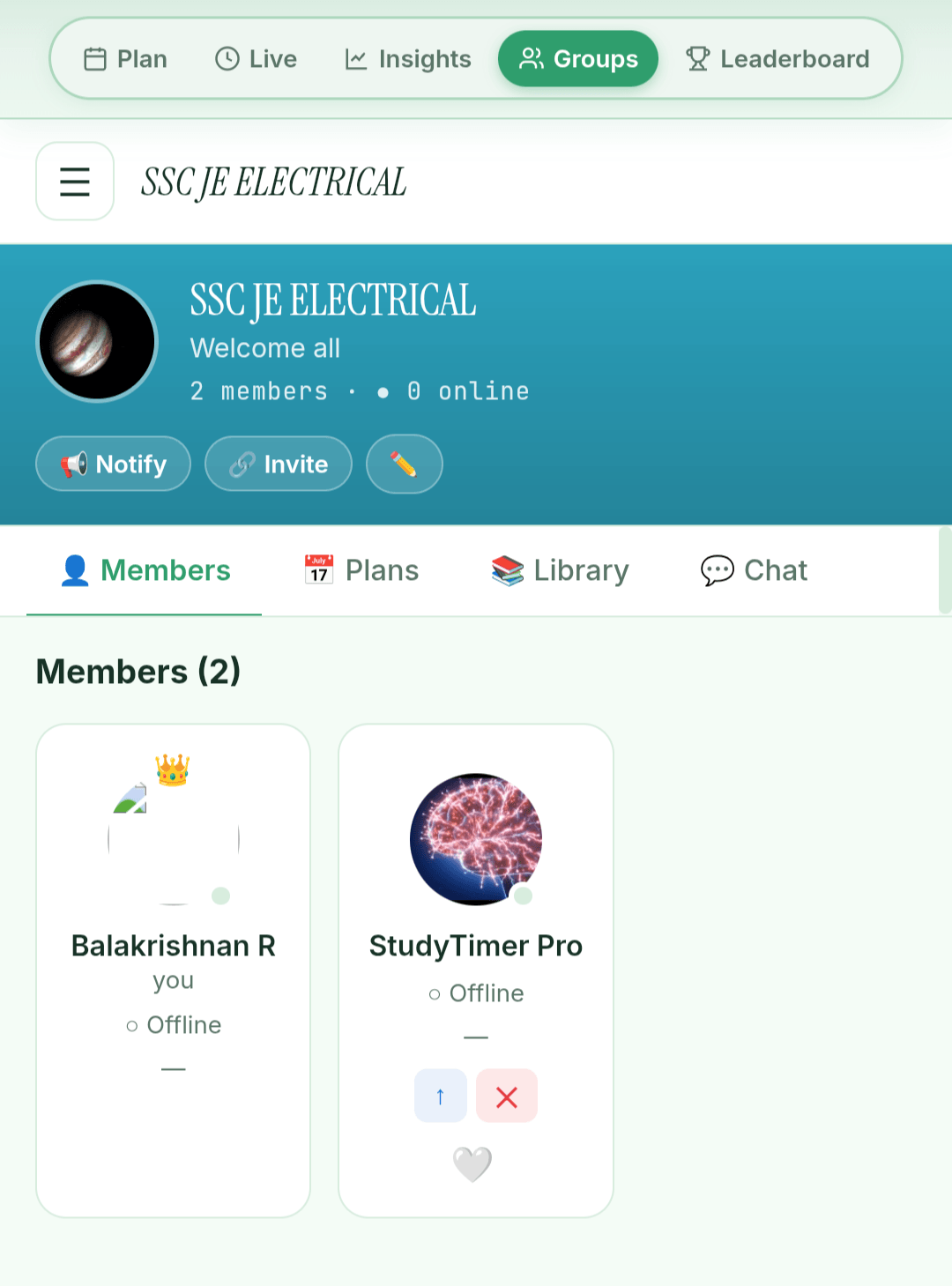
Invite-code groups for studying with friends — chat, shared plans, a shared resource library, and a small online indicator. Study Groups are a Lighthouse Pro feature. (For the public room of everyone sitting your exam, no invite needed, see Community.)
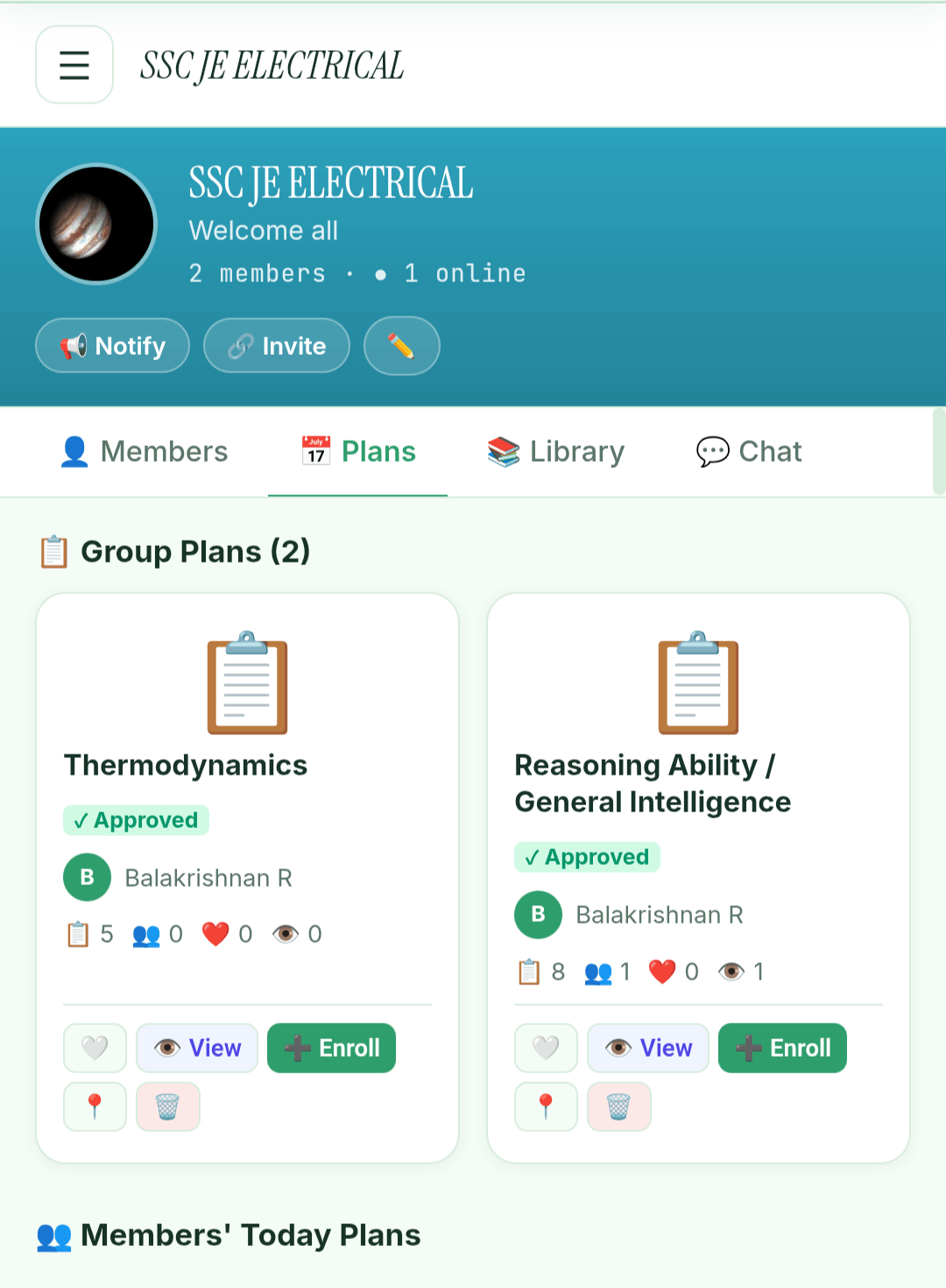
What's in a group
An owner, admins, and members. Admins help run the group; the owner can rename or delete it.
A realtime group chat with online indicators. Messages stick around; the online dot clears when you close the tab.
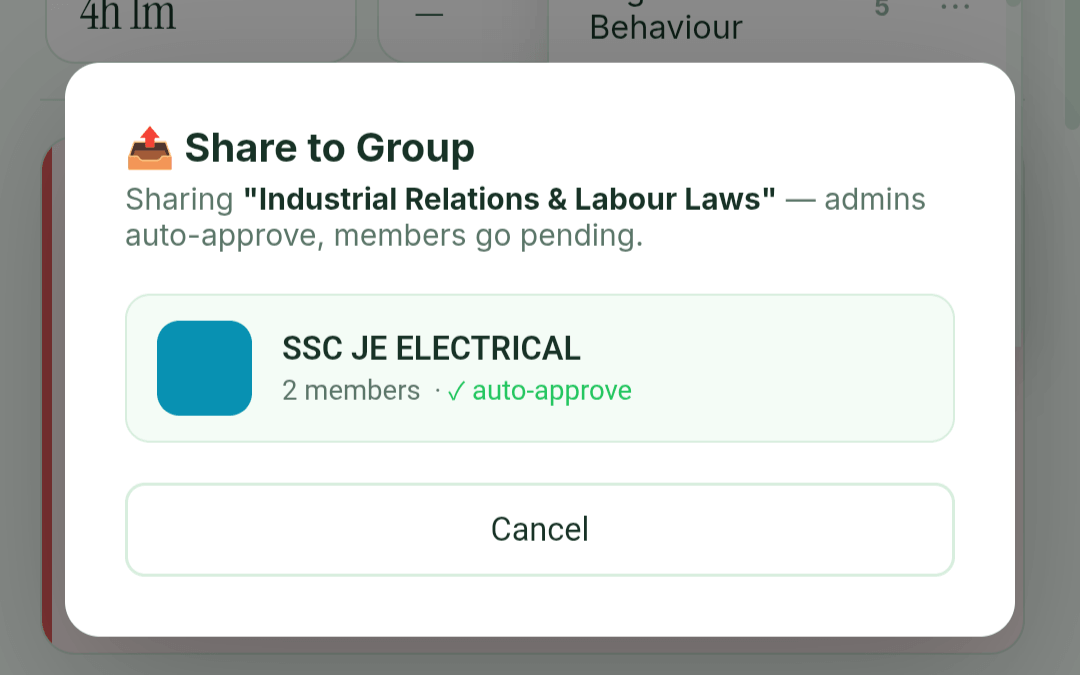
Anyone can share a study plan into the group; plans from members who aren't admins wait for an admin to approve them. Members can clone a plan into their own exam in one tap.
A shared resource library — PDFs, text files and images. Uploads from members who aren't admins wait for an admin to approve them.
Joining a group
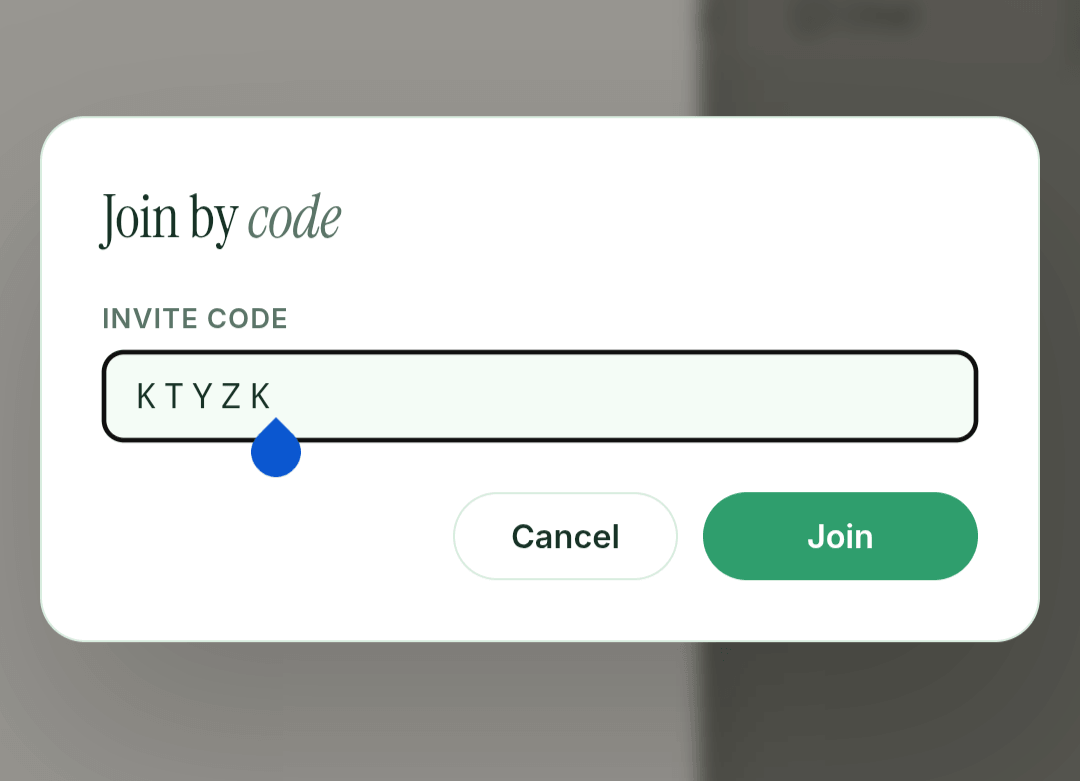
- Get an invite codeThe group's invite code, shared by the owner or any member.
- Enter it on the Groups tabTap "Join" and paste it in. Codes aren't case-sensitive, and you're in straight away.
- You're inYour name and photo show up to other members. You can post, share, and access the library.
Group notifications
A bell icon in the navbar shows you when there's new group activity — new messages, plans shared, library uploads, join requests. Tap it to jump straight in.
Sharing a plan
From any plan on Today's Plan, the share menu offers Share to group (when you're in at least one group). The plan and its sessions get posted into the group. Members can clone it, and the clone becomes a fresh plan under their own exam.
The library
Members can upload PDFs, text files, or JPG and PNG images (up to 20 MB each). Each upload becomes a card with a preview, the uploader's name, and the date; uploads from members who aren't admins wait for an admin to approve them. Tap any card to preview or download it.
Current Affairs #
A daily news brief with MCQs, grouped by exam category. Read the day's brief, browse a whole date range, or take a practice test built from it.
Two ways to read it
Available on the web at /current-affairs and each day's post at a dated link. No sign-in required.
A bottom sheet inside the app, opened by tapping the daily banner. Same content with smoother in-app navigation.
What you'll see in a day's post
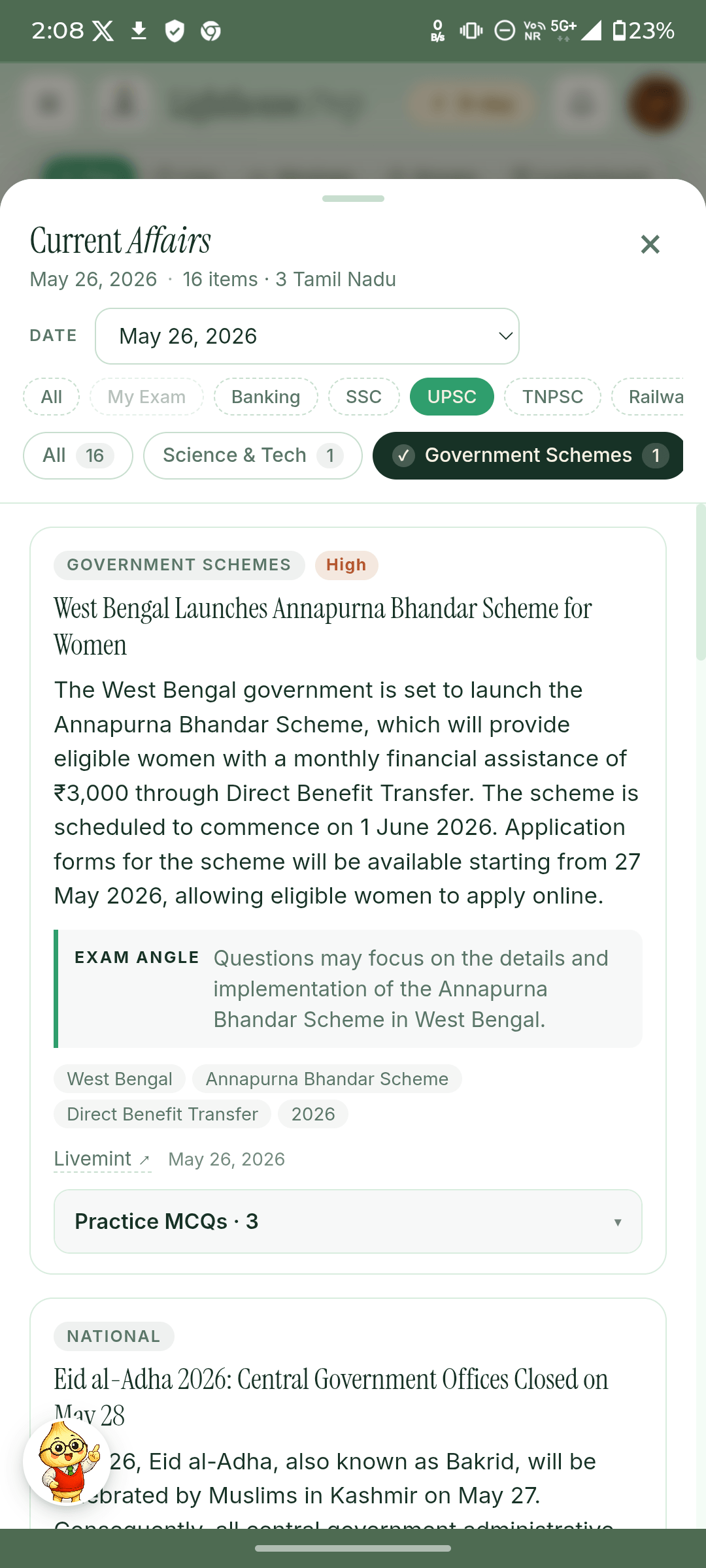
- News items grouped by category — Polity, Economy, International, Science & Tech, Sports, etc.
- Category chips at the top let you filter the view.
- A second row of chips filters by exam (UPSC, TNPSC, Banking, SSC, GATE, RRB) — only items relevant to your exam show.
- Each item has a summary, a source link, an optional image, and an MCQ underneath to test recall.
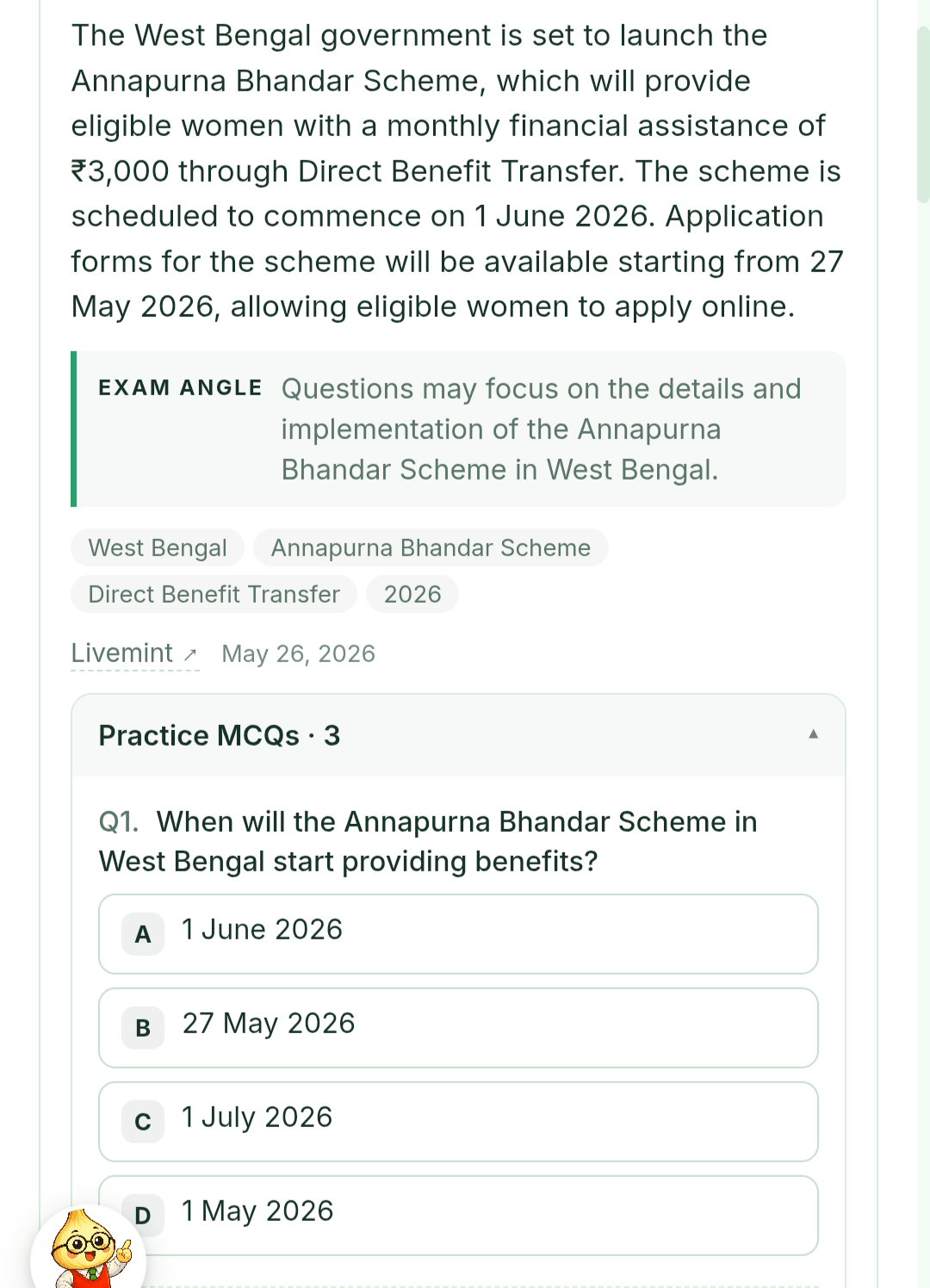
Two views: Daily and Range & Test
Inside the app the Current Affairs sheet has two tabs at the top:
- Daily — one day's brief. Use the date picker to hop to an earlier day.
- Range & Test — pick a date range (or tap a whole month), then either Read items across that whole span, or Take test: choose 10, 25, 50, or all questions and the app builds a shuffled practice quiz from that period, scores you, and keeps a list of your recent test results.
Read it in your language
The Daily tab has a 🌐 Language picker — Hindi, Tamil, Telugu, Marathi, Bengali, Kannada, Gujarati, Malayalam, Odia, or Punjabi. Translating a day costs a small one-time amount of AI tokens (shown before you confirm); reopening that day later is free. Names, numbers and technical terms stay in English, the way bilingual exam papers are written, and every item keeps its original source link.
Focus Shield is on while you read
On Android, opening the Current Affairs sheet switches on Focus Shield — the same way a study session does. We treat current-affairs reading as study time, not scroll time, and silence the rest of your phone while you're in there.
AI Balance #
How AI usage is metered, the top-up packs, and what you can do without ever paying anything.
Your balance
Every user — guest or signed-in — starts with 50,000 free credits. You can see your current balance and how much you've used in the AI Tokens menu item.
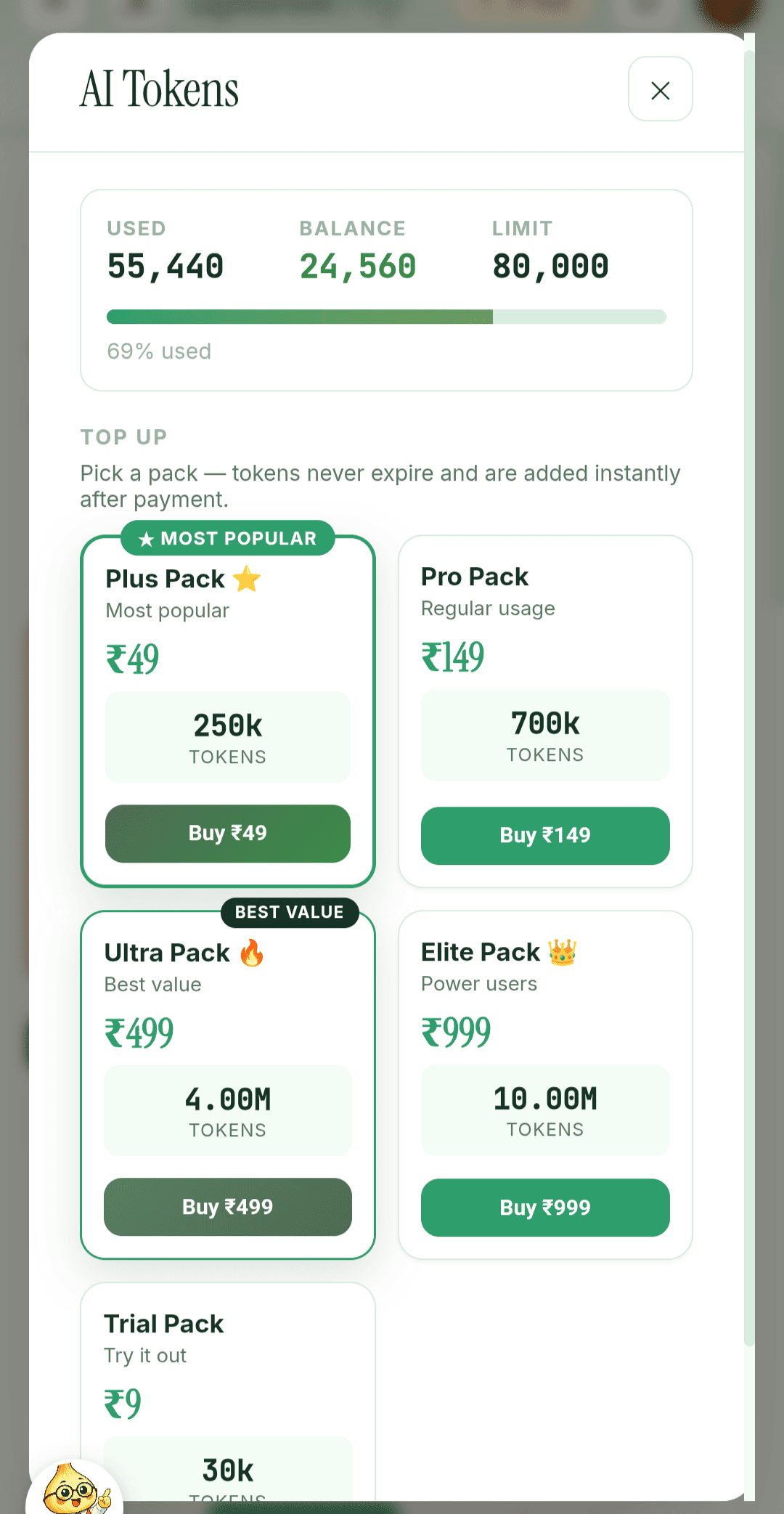
The top-up packs
- Trial Pack — ₹9
- 30,000 credits. A low-friction tester.
- Plus Pack — ₹49
- 250,000 credits. Most popular.
- Pro Pack — ₹149
- 700,000 credits. Regular usage.
- Ultra Pack — ₹499
- 4,000,000 credits. Best value.
- Elite Pack — ₹999
- 10,000,000 credits. Power users.
Packs are priced in your own currency — if you're outside India you'll see the international price and can pay with an overseas card.
How payment works
UPI, cards, netbanking, wallets — all supported. The checkout opens in a small popup; the payment is secure and verified before credits are added.
The moment payment is confirmed, your new balance shows up. No waiting, no manual activation.
Guests can see the packs and balance, but the Buy button is disabled until you sign in with Google.
What uses your balance
- Building a plan with AI
- Chatting with Lumi (text)
- Lumi Call — the voice mentor (unlocked with the Ultra or Elite pack)
- Generating study material — topic breakdowns, MCQs, deep dives and their illustrations
- A mock-test paper, once each (your first is free, and every re-attempt of a paper you own is free)
- Reading the daily current affairs in a language other than English
What's free without spending tokens
- The timer, sessions, plans, and all session management
- Wastage and Insights reports, and sharing stats
- Viewing the leaderboard (your name shows with Pro)
- The Crossing, Learn videos, the Community, and your own notes
- Reopening study material you've already opened once
- Notifications and settings
Lighthouse Pro #
The core app is free. Pro is a paid plan that removes ads and unlocks the social, current-affairs, and power-user features.
What Pro unlocks
No interstitial ads anywhere — study without interruptions. (Free users see occasional ads.)
The complete daily digest plus the full archive and the Range & Test practice tools. Free users see only a short daily preview.
Create and join study groups — chat, shared plans, and the shared library. Groups are Pro-only.
Start a 1-to-1 chat with anyone in your exam's Community, and look into other exams' communities. Whoever you message can reply for free.
Save images, PDFs and links alongside your topic notes. Text notes stay free for everyone.
Show your real name and exact rank instead of appearing as "Anonymous".
Chat with Lumi without the hourly limits that apply on the free plan, plus a faster, smarter AI model.
Profile picture, all colour themes, all Live-Session timer faces, and a share card that shows your name and rank.
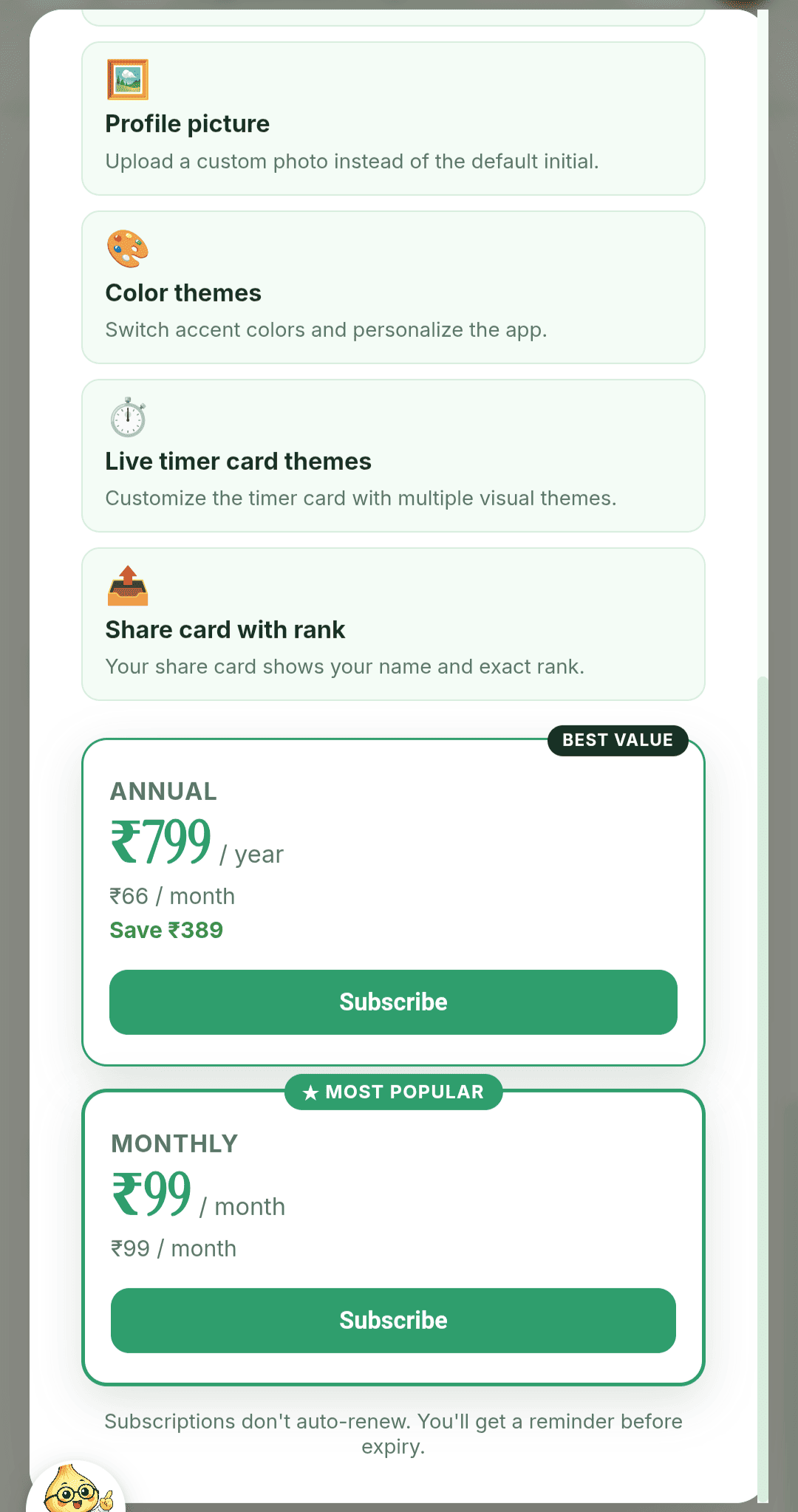
Pricing
- Annual — ₹799 / year
- Works out to about ₹67 / month — the best value (saves ₹389 vs monthly).
- Monthly — ₹99 / month
- The flexible option, billed month to month.
Prices are shown in your own currency. If you're outside India you'll see the international price and can pay with an overseas card — there's nothing extra to arrange.
Renewing & cancelling
Subscriptions don't auto-renew — you'll get a reminder before yours expires, and you choose whether to renew. To manage or cancel a subscription, email studytimerpro@gmail.com. Payment is handled securely through Razorpay (UPI, cards, netbanking, wallets).
Study Languages #
Study in the language you'll actually write the exam in. Lighthouse Prep generates study material, revision questions, mock tests and AI chat in 11 languages — in the same bilingual style as Indian coaching materials.
Eleven languages
English, Hindi (हिन्दी), Tamil (தமிழ்), Telugu (తెలుగు), Marathi (मराठी), Bengali (বাংলা), Kannada (ಕನ್ನಡ), Gujarati (ગુજરાતી), Malayalam (മലയാളം), Odia (ଓଡ଼ିଆ) and Punjabi (ਪੰਜਾਬੀ).
How to choose your language
- When you create an exam, you pick its study language. Each exam has its own — you can prepare for one exam in Tamil and another in English.
- The picker only offers languages the exam is actually conducted in — no point studying in a language the real paper won't be printed in. English is always available.
- Your default language for new exams lives in Settings, and you can change an exam's language there too.
Bilingual — the way real prep material is written
Choosing Hindi doesn't mean everything is blindly translated. Content follows the bilingual exam-prep style used by coaching institutes and bilingual question papers:
- In your language
- Every explanation, description and sentence — the parts you actually read and learn from.
- Kept in English
- Technical terms, official syllabus words, formulas, units and abbreviations — with your language's equivalent in brackets on first use.
What appears in your language
Study materials, revision quiz questions, mock-test questions and explanations, and Lumi AI chat.
Your plan's structure and topic names (they match the official syllabus wording), and exam sections that test English itself — an English Language section stays in English, like the real paper.
Spotted a wrong word? Long-press it
Session and topic names are translated automatically, and a short name can easily pick up the everyday meaning instead of the study one. Press and hold a translated name and a 🔤 Wrong word? sheet opens — tell us, and suggest the right word if you know it.
The fix isn't just for you: everyone studying that exam in your language sees the corrected word. And if we can't find a word we trust, the term stays in English rather than staying wrong.
Current affairs in your language
The daily current-affairs digest can be read in your language too. It costs a small flat token fee for each day you translate — you're charged once per day's brief, so re-opening the same day later is free. English is always free.
Notifications #
What we'll send you, when, and how to control it.
What you'll get
- Day-end study report — once a day after you've studied, summing up your hours and pointing at tomorrow's plan.
- Revision due reminders — when you have items due today and haven't opened the app yet.
- Group activity — new messages, plans shared, members joining (you can fine-tune this per group).
- Inactivity nudges — a gentle "haven't studied in a few days" reminder.
- Messages from the Lighthouse Prep team — occasional announcements. These also land in the in-app bell, whose badge keeps blinking until you open it.
- Lumi check-ins are not pushed — a dot on her button shows when she has something to say.
Permission states
- Not asked yet
- We'll ask the first time we'd send something.
- Granted
- You'll get push notifications. You can turn them off in Settings anytime.
- Denied
- You blocked them. To re-enable, change it in your browser's site settings — we can't ask again.
- Not supported
- Some older browsers and a few in-app webviews (like Instagram's) don't support push. The toggle simply won't show.
When we'll ask for permission
- A card first, never a cold promptOnce you've got a plan running, a small card offers to remind you at your study time. Only if you say yes there do we open the browser's own permission prompt.
- Saying no costs you nothingDismiss the card and it steps back for a few days. That matters: the browser's prompt is one-shot — deny that and no site can ever ask again, so we don't spend it on someone who hasn't asked for it.
- From Settings, anytimeYou can trigger the permission prompt yourself from Settings → Notifications.
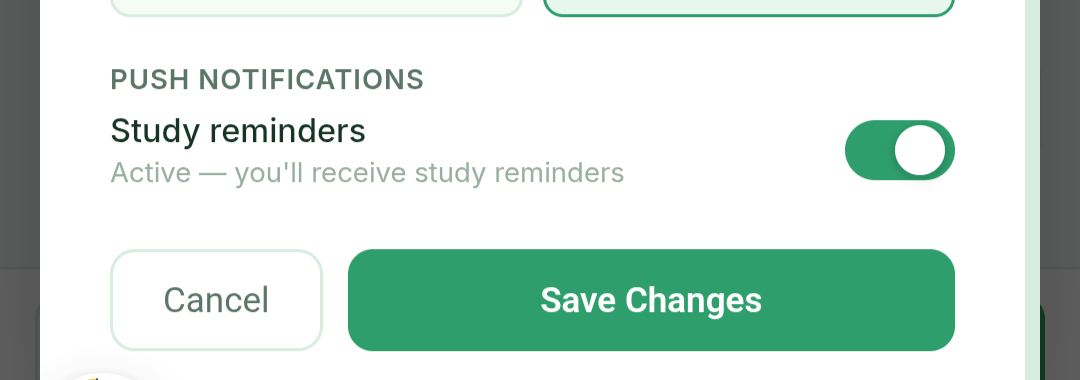
Turning them off
Toggle Notifications off in Settings and we stop sending. To fully revoke at the browser level, use your browser's site-settings panel — once permission is granted, that's the only place to take it back.
Settings #
What every toggle does, and what each section is for.
What's in the Settings panel
Your display name (shown on the leaderboard and in groups), exam name, and exam date.
Dark / light toggle and colour theme. The default teal theme is free; others are Pro.
Turn push notifications on or off. If your browser has blocked them, you'll see guidance to re-enable in browser settings.
Toggle the auto-on behaviour. When off, the shield only runs when you flip it on yourself. (Android only — hidden on desktop.)
See your current AI balance with a one-tap shortcut to top up.
Sign out, manage Pro, and a link to delete your account.
Resetting & re-onboarding
There's no single "reset everything" button — it's destructive and easy to misclick. If you'd like a clean start, the cleanest path is to delete your account at /delete-account and sign in again. For just rebuilding your plan, use Plan with AI on Today's Plan as many times as you like.
Troubleshooting #
The handful of issues that come up most often, and exactly how to fix each.
The timer didn't count my session
- The timer needs to be running — tap Start, not just open the session card.
- Time counts on the active session only. If you swapped to another mid-study, the first session's elapsed time was saved before the swap — the new one starts at zero.
- If you reloaded the browser before pausing or letting the page close cleanly, you may lose the last few seconds since the previous save point.
Focus Shield won't activate
- It's Android only. On desktop and iPhone the shield doesn't exist.
- Inside the Android app, check that the walkthrough's permissions are granted — Do Not Disturb, notification access, running in the background, and the accessibility service that blocks apps. Re-run setup in the shield chip's menu walks you through them again.
- If you uninstalled and reinstalled the Android app, your phone's permissions reset. The next time you start a session, the walkthrough will replay — just grant them again.
- If you turned auto-on off in Settings, the shield only runs when you tap the chip yourself.
I'm not getting push notifications
- Check the Notifications section in Settings. It shows your browser's current permission state.
- If it says "denied," you'll need to re-enable in your browser's site settings — we can't ask again from inside the app.
- Push only works on the real site (lighthouseprep.in). Some in-app browsers (like the one inside Instagram or Facebook) silently block push.
"Top up to continue"
- Your AI balance has run out. Everything except AI features still works — timer, sessions, plans, groups, current affairs reading.
- Open the AI Tokens menu item to top up. Credits land instantly.
AI plan creation failed
- Most often a brief network issue. Tap Plan with AI again — your onboarding state is not consumed by a failure.
- If your exam name is broad (like "Banking"), the confirmation popup needs you to pick a specific exam first.
- Check your AI balance — plan creation can fail mid-way if you run out of credits.
Lumi forgot something I told it
- If a memory has gone stale, simply mention it again — Lumi will reinforce it.
- Older facts naturally weigh less in newer conversations. Re-stating them refreshes their importance.
- You can ask Lumi to forget specifics ("forget that I'm preparing for SSC") and it will.
Group invite code doesn't work
- Check you copied the whole code. Codes aren't case-sensitive.
- If the group was deleted, the code stops working.
- You must be signed in with Google and have Lighthouse Pro (or the Pro trial) to join. Guests can't.
"You're offline" banner across the top
- Your connection dropped. The timer, your sessions and your notes carry on working from the copy on your device.
- AI, chat, the leaderboard and the community wait for the connection to come back — the banner clears itself when it does.
- Studied time saves locally and syncs the moment you're back online. Nothing is lost by carrying on studying.
The plan asks for more hours than I can do
- Wait for the catch-up banner on Today's Plan, or shorten the sessions yourself — it rebuilds the routine to the hours you've actually been managing.
- Don't delete sessions to make the plan smaller: deleting purges that session's history. Catch-up pauses them instead, which keeps your hours and streak intact.
Study material looks wrong
- Every card has a report action — pick a reason (wrong information, too easy, confusing, wrong language…) and send it. Reports reach the team directly.
- Names translated into your study language can be reported by pressing and holding the name.
FAQ #
Quick answers to the most common questions about the app.
The study core is free — timer, plans, sessions, wastage/insights reports, revision, notifications, and viewing the leaderboard all work without paying (free users see occasional ads).
Some features are part of the Lighthouse Pro subscription: ad-free, Study Groups, the full Current Affairs (with Range & Test), starting direct messages, note attachments, your name on the leaderboard, themes, and unlimited Lumi. Pro is ₹99/month or ₹799/year.
Separately, AI features (the plan builder, Lumi chat, study material, mock-test papers, Lumi Call) use a small token balance. You start with 50,000 free credits; top-up packs begin at ₹9.
Free users see occasional ads (for example when closing the Current Affairs sheet). Lighthouse Pro removes all ads — it's the headline Pro feature.
Yes — guest mode covers sessions, plans, the AI plan builder, and a preview of current affairs. The Lumi mentor needs Google sign-in (study reminders work for guests too); Study Groups, your name on the leaderboard, and the full Current Affairs need Lighthouse Pro. Your guest data merges into your account the first time you sign in.
Partially. Once installed, the app opens without internet, and your timer keeps running from local state. AI features, group chat, the leaderboard, and push notifications need a connection. Your studied time saves locally and syncs the moment you're back online.
English, Tamil, Tanglish, Hindi, and Hinglish are detected automatically — Lumi replies in the same language you write in. Other languages will work too, though the experience isn't tuned for them yet.
No. Credits stay on your account forever — no monthly reset, no penalty for unused balance.
Not from the app today. If you have an existing plan you'd like imported, email studytimerpro@gmail.com and we can help.
Everything tied to your account — sessions, plans, mentor memory, balance, group membership, leaderboard entry — is permanently removed. The delete page at /delete-account walks you through it. The action is irreversible.
Yes. Prices are shown in your own currency automatically, and Pro and token packs can both be paid for with an overseas card — nothing to arrange by email. One catch: an Indian-issued card can't pay an international-currency order, so if you're travelling, pay with a card issued where you're billed.
Eleven — English, Hindi, Tamil, Telugu, Marathi, Bengali, Kannada, Gujarati, Malayalam, Odia and Punjabi. You set a study language per exam, and study material, revision questions, mock tests and Lumi all follow it. See the Study Languages section for how the bilingual style works.
Your display name, profile photo, streak and weekly study hours, and only if you're signed in — that's what appears on the leaderboard and in the Community. Your notes, Lumi chats, revision answers, mock-test scores and your Crossing are private to you. Free accounts appear as "Anonymous" on the leaderboard.
The burger menu has an Export PDF report option that builds a clean PDF of your sessions, studied minutes, and wastage breakdown for the selected date range. The Share today's stats option also produces an image card for socials.